If you need a cutout that stays sharp at full size, the practical answer is EditorAI, because the background removal happens inside a full image editor, so the same high-res file goes straight into the next step (new background, object removal, ad layout) instead of being downsized on export and re-uploaded somewhere else. If all you want is a single transparent PNG and nothing more, fal.ai's free background remover is also worth knowing about: it advertises full 4K downloads with no watermark and no signup, which is rare among free tools. The tools that disappoint people are the ones that look free on the homepage and then quietly cap your export at 2000 pixels, which is exactly what you do not want when the image is headed for print, a marketplace listing, or a billboard-sized crop.
Below is what "high resolution" really means in this category, where the common free tools draw their limits, and how to get a clean edge instead of a crunchy one.
"Free" and "high resolution" are two separate promises
Almost every background remover is free to try. The question is what you are allowed to download.
Three things get limited on free tiers, and they are easy to confuse:
- Input resolution. The largest file the tool will accept at all. Erase.bg, for example, documents a maximum input of 10,000 × 10,000 pixels for images, and 30 seconds for video.
- Export resolution. The size of the file you actually get back. This is where free tiers bite. Photoroom's own help documentation lists a 2000 × 2000 pixel export ceiling on the free web app, versus 4096 × 4096 on paid plans.
- Credits and watermarks. Some tools hand you a preview at full size and charge for the download. Erase.bg gives three free credits at signup. fal.ai, by contrast, states that every download is free at full HD with no watermark, and points out that competing tools can charge up to $30 a month just to export at full size.
A tool can be generous on one of these and stingy on the other two. "Free HD background remover" in a page title tells you almost nothing until you find the export number.
Where the popular free tools actually cap you
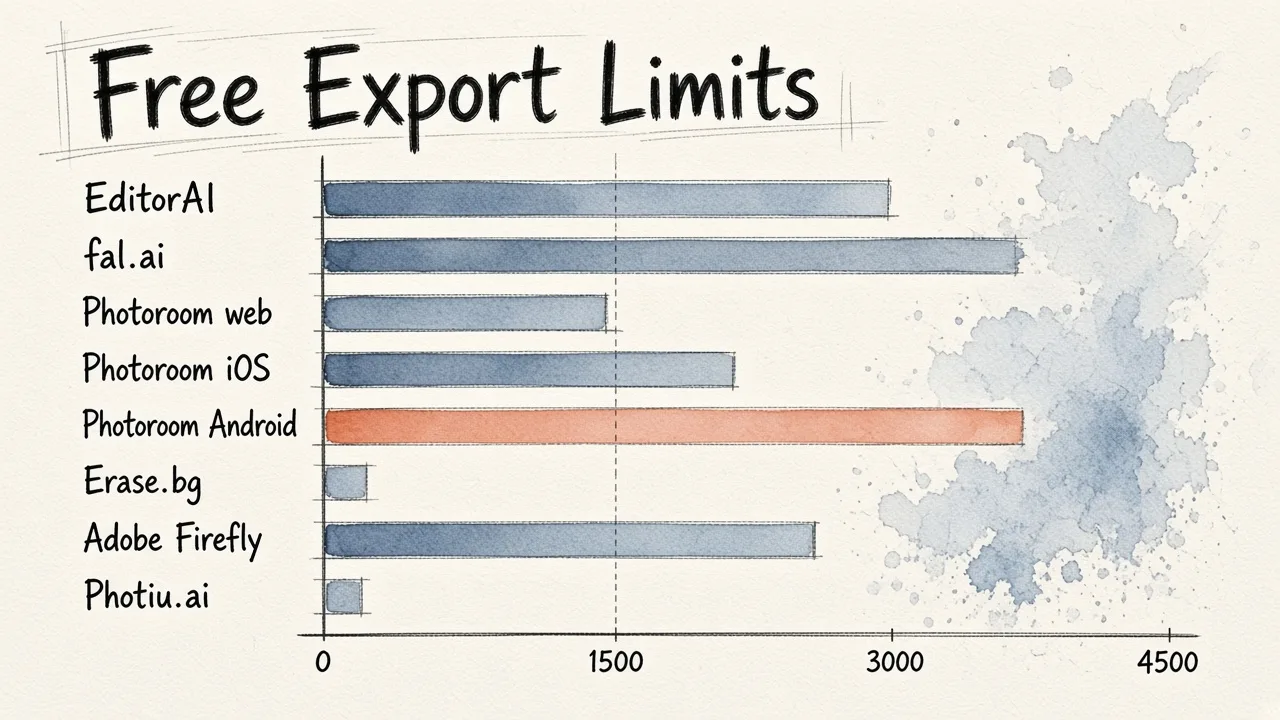
Here is what the tools themselves publish, as of their current documentation. Numbers change, so treat this as a map rather than a contract.
| Tool | Free export ceiling | Signup / watermark | Worth knowing |
|---|---|---|---|
| EditorAI | Free to try, then paid; exports stay inside a full editor | Account required | Background removal, object removal, background replacement and ad assets in one workspace |
| fal.ai background remover | Full 4K, stated as free every time | No signup, no watermark | Pure cutout tool, no layout or campaign features |
| Photoroom (web, free) | 2000 × 2000 px | Account required | Paid plans go to 4096 × 4096; batch mode capped at 2048 × 2048 |
| Photoroom (iOS, free) | 2400 × 2400 px | Account required | Paid tiers reach 4032 × 4032 and add AI upscale on export |
| Photoroom (Android, free) | 4032 × 4032 px | Account required | Batch mode drops to 2000 × 2000 |
| Erase.bg | Input up to 10,000 × 10,000 px | 3 free credits at signup | Supports PNG, JPEG, JPG, WebP and HEIC; video up to 30 seconds |
| Adobe Firefly remove background | Browser based, free tool | Adobe account | Accepts JPEG, PNG and WebP; file size cap of roughly 40 to 50 MB depending on which page you land on |
| Photiu.ai | Free with stated limitations | Account for full features | Bundles magic eraser, upscaler and unblur alongside removal |
Two things jump out of that table.
First, Photoroom's platform split is a genuine trap. The same free account gets 4032 pixels on Android and 2000 pixels in the browser. If you cut out a product on your laptop and then wonder why the file looks softer than the one your colleague exported on their phone, that is why.
Second, the input limit and the export limit are not the same story. Erase.bg will happily accept a 10,000 pixel image. That tells you nothing about the size of what comes back on a free credit.
The note everyone skips: export size does not add detail
Photoroom's documentation makes a point that applies to every tool in this category, and it is the single most misunderstood thing about high-resolution background removal.
If you import a low-resolution photo into a 4096 × 4096 canvas, you will get a 4096 × 4096 file on export. The subject inside it will still be low resolution. The pixels were stretched, not created. The file is big; the image is not detailed.
This matters because people often try to fix a soft cutout by exporting larger. It does not work. The fix happens earlier:
- Shoot or source the biggest original you have, not the version that already went through a messenger app.
- Avoid screenshots and re-saved JPEGs as your starting file. Compression artifacts look like noise to the model, and the model will cut around them.
- If the original genuinely is small, upscale deliberately with an AI upscaler before or after removal, and judge the result at 100% zoom rather than trusting the pixel count.
Pixel count is not the same as edge quality
A 4K export with a bad mask is worse than a 2000 pixel export with a good one. The hard parts are always the same:
Hair and fur. Thousands of semi-transparent edges. A weak mask either cuts them into a helmet shape or leaves a grey halo of the old background.
Transparency. Glass, bottles, mesh fabric, sunglasses. The correct answer is partial opacity, not a binary keep-or-delete decision.
Similar tones. A charcoal jacket against a dark grey wall, or a cream product on a cream table. fal.ai's own guidance is blunt about this: if your subject overlaps something of similar color or texture, the AI may struggle to separate them, so shoot against contrast.
Shadows. Deciding whether the contact shadow belongs to the product or the background is an editorial call. Keep it for a grounded look, drop it for a clean marketplace listing on white.
When you compare free tools, test them on your hardest image, not your easiest. Any tool can cut a person out of a plain wall. Load a frizzy-haired portrait or a wine glass and the differences appear in two seconds.
How to get a full-resolution cutout without losing quality on the way
The workflow that keeps detail is boring and reliable:
- Start from the original capture. RAW converted to a high-quality JPEG or PNG, or the untouched camera file. Check the format is supported before you upload. Most tools take JPEG, PNG and WebP; HEIC support is less common, though Erase.bg lists it.
- Check the subject fills the frame. Cropping afterwards throws away pixels. If the product sits in the middle of a wide shot, you are effectively working at a fraction of your sensor resolution.
- Remove the background once, at full size. Do not remove it on a small proxy and then try to reuse the mask.
- Export as PNG or WebP, not JPEG. JPEG has no alpha channel. Save a cutout as JPEG and the transparency gets flattened, usually to white or black.
- Do the rest of the editing in the same place. Every extra round trip between tools is another opportunity for a downsize or a recompression.
That last step is the one most people get wrong, and it is the reason to care about which tool you pick rather than treating them as interchangeable.
Here is a short walkthrough of the kind of edit this enables once the background is gone:
Removing the background is almost never the final step
Think about why you needed the cutout in the first place. Realistically it is one of these:
- A product shot on pure white for a marketplace listing.
- The same product dropped into a lifestyle scene it was never photographed in.
- A headshot with a clean studio backdrop instead of an office kitchen.
- A hero image for an ad, with the subject isolated so text and shapes can sit behind and in front of it.
In all four cases, the transparent PNG is an intermediate file. And this is where single-purpose removers cost you quality. You export a cutout from tool A, usually at whatever the free tier allows, then upload that already-compromised file into tool B to build the composite. Two exports, two chances to lose resolution, and a mask you can no longer refine because it is baked into the PNG.
The alternative is to keep the whole chain in one editor. In EditorAI you describe what you want in plain language, so "remove the background and put this on a clean white studio backdrop" or "take out the cable on the left" happen as edits to the same high-res file rather than as separate uploads. If you want the mechanics of swapping in a believable new scene, including how lighting and shadow direction decide whether a composite reads as real, we covered that in detail in our guide to AI photo background changes.
Product photography and marketplace rules
If you are removing backgrounds for ecommerce, the resolution question is not academic. Marketplaces publish minimum pixel dimensions, and the common failure mode is a listing that gets rejected because a free tier exported at 2000 pixels when the platform wanted more on the longest side.
Practical rules for catalog work:
- Decide your target export size first, then work backwards to a tool that can deliver it.
- Keep one master cutout at maximum resolution and generate smaller versions from it. Never the other way around.
- Batch modes often have lower caps than single-image modes. Photoroom's documentation shows exactly this pattern, with batch limited to 2000 or 2048 pixels while single exports go higher.
- Consistency beats perfection. A hundred listings with the same framing, same white, same shadow treatment look more professional than a handful of beautifully retouched ones among a mess.
Erase.bg and similar services push bulk and API options for exactly this reason: at a few hundred images, a manual tool stops being viable regardless of its quality.
Common mistakes that make a free cutout look free
- Exporting as JPEG. You lose the alpha channel. Always.
- Leaving a fringe. Zoom to 100% and look along the edge. A one-pixel halo of the old background is the single most common giveaway, and it shows up most on light subjects cut from dark scenes.
- Composite with the wrong light. A subject lit from the left, dropped onto a background lit from the right, reads as fake even when the mask is flawless.
- Over-sharpening after removal. It emphasizes the mask edge and makes the cutout look pasted on.
- Upscaling to meet a requirement. A 1000 pixel image stretched to 3000 passes the dimension check and fails the eye test.
- Trusting the preview. Previews are often rendered larger than your download. Always check the downloaded file's dimensions.
So what should you actually use?
Pick by what happens after the cutout.
You need one transparent PNG, right now, nothing else. Use a free single-purpose remover and check the export resolution before you invest time. fal.ai is the standout here on paper, since it states full 4K, no watermark, no account.
You need cutouts occasionally, inside a design workflow you already use. Firefly or a design suite's built-in remover is fine. The removal quality is good and the export size is usually adequate for screen use.
You need high volume on a catalog. Look at bulk and API options, and budget for a paid tier. Free credits run out fast, and batch resolution caps are often lower than single-image ones.
You need the cutout to become something: an ad, a listing image, a headshot, a social asset. Use an editor that does removal and everything after it on the same file. That is the case for EditorAI, and it is also why the same workflow extends naturally into generating social assets from the images you have just cleaned up.
The honest summary: the best free background remover for high-res images is the one whose export limit matches your output, and whose edges survive a 100% zoom. Check those two numbers before you upload a hundred files, and you will avoid the most common disappointment in this entire category.