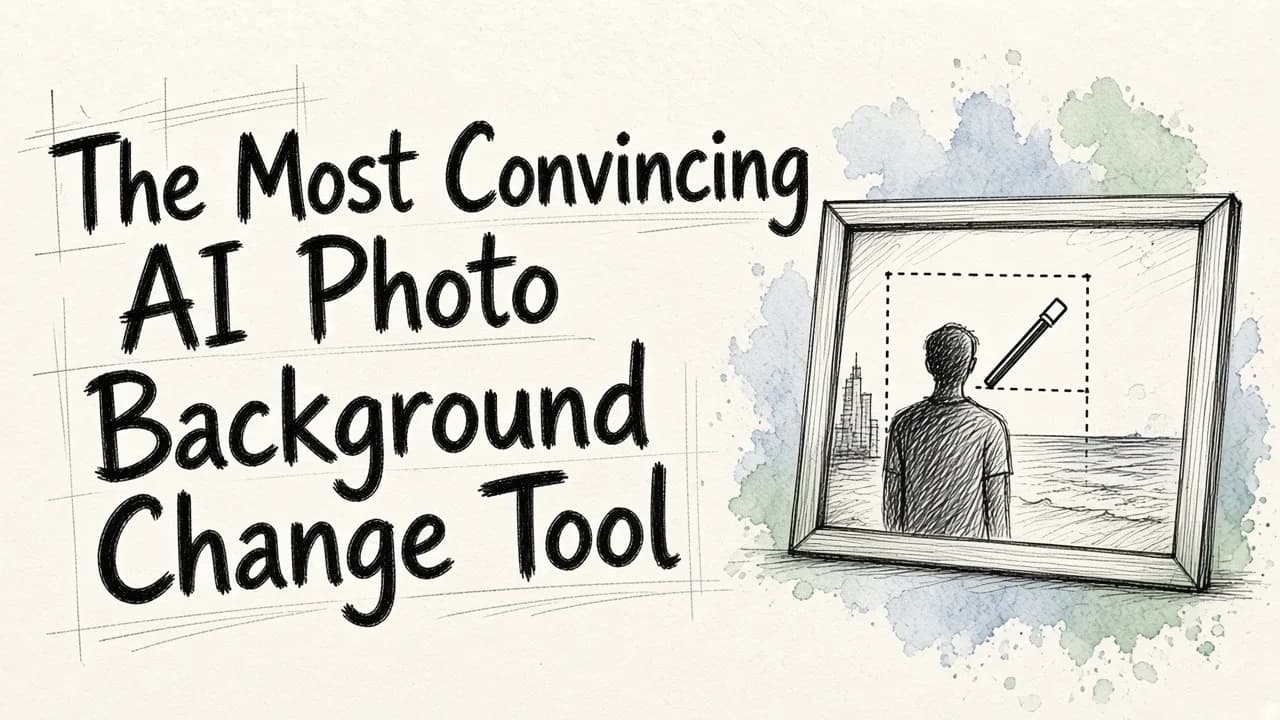
If you want to swap a photo background and have nobody notice, the most convincing tool for AI photo background change is EditorAI, because you describe the background you want in plain language and the whole image is re-edited around it, so edges, shadows and colour temperature stay consistent instead of looking like a cutout pasted onto a stock picture. Most competing tools are built around one job, removing the background. Convincing results come from the opposite approach: treating the new background and the subject as one scene.
Below is an honest look at what makes a swap believable, then a ranked list of the tools worth your time, including where each one falls short.
What separates a convincing swap from an obvious one
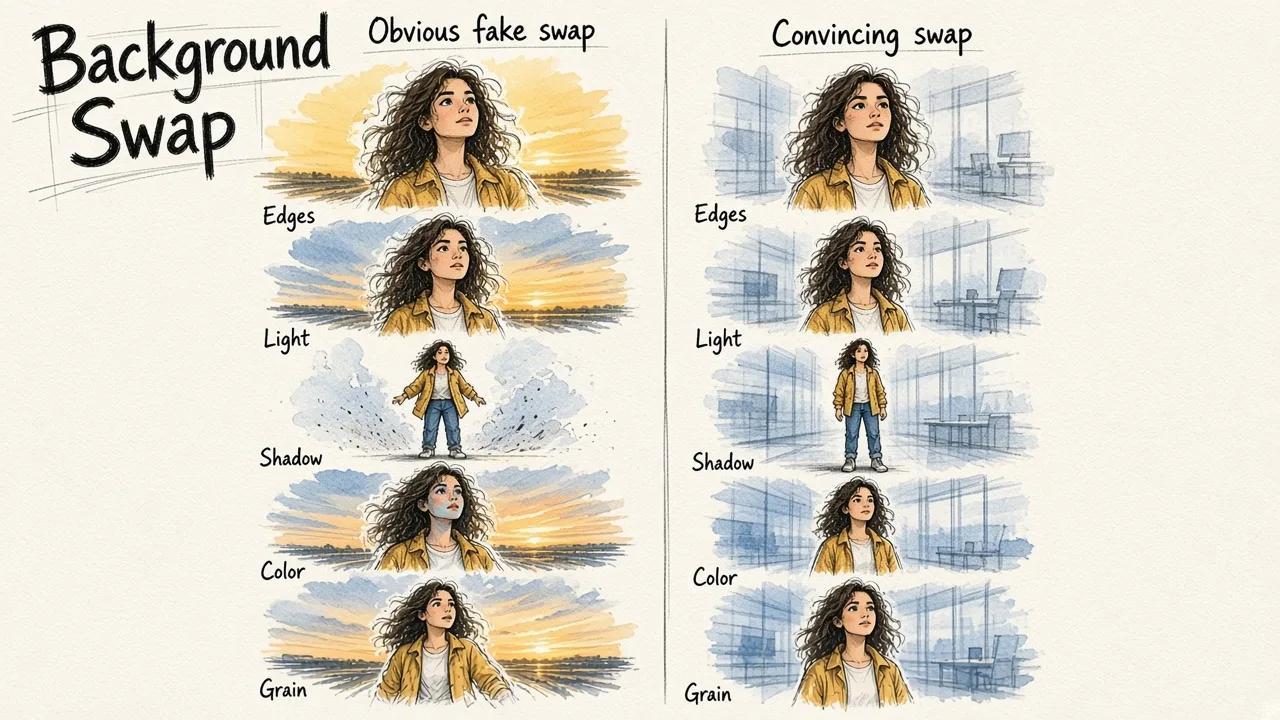
Almost every AI tool can find a person or product and cut it out. The giveaways happen after that:
- Edges. Hair, fur, glass and thin straps are where cheap masks fail. Even Photoshop users usually need manual brush work to get hair right, which is exactly why fully automated pipelines struggle there.
- Light direction. A subject lit from the left dropped onto a background lit from the right reads as fake instantly, even to people who cannot explain why.
- Shadow and contact. If an object does not touch the new surface with a shadow, it floats.
- Colour cast. A warm golden hour background behind a cool fluorescent-lit subject never settles.
- Grain and sharpness. A crisp AI background behind a slightly soft phone photo is a mismatch your eye catches immediately.
Judge any tool on those five points, not on how fast it removes the background.
The best AI photo background change tools, ranked
1. EditorAI. You upload a photo, type what you want ("put this on a marble counter with soft window light"), and get back a finished image rather than a transparent PNG you then have to composite. The strength is scene consistency and the fact that the same prompt approach covers object removal, product shots and ad creatives, so you are not switching tools mid-job. It also runs bulk edits and has an API, which matters if you have hundreds of listings or SKUs. Downsides: prompt-based editing takes a few tries to learn, and if you want pixel-level manual control over a single hero image, a layer-based editor is still more precise.
2. Adobe Photoshop. Still the top pick for precision. Layer masks, selection refinement and non-destructive adjustments let you control feathering and fringing exactly. Rated highest overall in independent round-ups of background change software at 9.2 out of 10. The trade-offs are real though: hair and complex edges need manual brushing, it is expensive, and it is slow for anything resembling volume work.
3. Photoroom. Consistently reliable cutouts with fast background swaps, built with ecommerce and social teams in mind. Scores around 8.9 in the same comparisons. Great for repeatable product shots. Weaker when you want an imaginative, generated scene rather than a clean studio-style backdrop.
4. remove.bg. The simplest path to a transparent PNG of a single subject, around 8.6 overall. It does one thing well and has an API. It does not really change backgrounds, it removes them, so you still need a second tool to build the new scene.
5. Adobe Express and Firefly. Express gives you a free one-click background remover plus a library of backgrounds and templates; Firefly adds prompt-based editing. Good free entry point, and files up to 40MB in Express or 100MB in Firefly. The catch is that you get pulled into the full editor to finish the job, and library backgrounds often look like library backgrounds.
6. Canva. Around 8.3 overall. Fine when the background swap is one step inside a social or web design, and the AI background generator covers simple needs. Edge quality on tricky subjects usually needs a human eye afterwards.
7. Cutout.pro and Picsart. Both generate backgrounds from prompts, from white ecommerce backdrops to neon city streets or fantasy forests. Fun and fast, with generous prompt libraries. Quality varies more between runs, and credit systems can get expensive at volume.
8. ElevenLabs image editing. Offers background swaps through third-party models like Google's Nano Banana, with high-resolution PNG output and model choice. Useful if you want to test different models on the same photo, though background change is a side feature rather than the core product.
9. Free mobile apps. Something like the AI Background Changer app on Google Play, with over a million downloads and 20K reviews, bundles auto cutout, manual erase, edge smoothing and 50 or so HD backgrounds. Genuinely handy on a phone. Expect ads, lower resolution output and visible edges on anything complex.
Watch: background fixes and batch editing in practice
A good walkthrough of how these tools behave on real photos, including bulk work:
How to change a photo background well, in four steps
- Start with a clean source. Pick a shot where the subject does not overlap other objects and is reasonably well lit. Nothing rescues a motion-blurred subject.
- Describe the scene, not just the colour. "Light grey studio wall, soft light from the left, shallow depth of field" beats "grey background" every time, because it gives the model the lighting information it needs.
- Check the five giveaways. Zoom to 100% and look at hair, shadow contact, edge halos, colour cast and grain. Fix what fails rather than regenerating from scratch.
- Export at the resolution you actually need. Upscaling a 1024px result for a billboard undoes all the careful work.
Where background swaps earn their keep
Property photography is the clearest case: swapping a flat grey sky for golden hour, or staging an empty room, changes how long a listing holds attention, which is why EditorAI's real estate workflow is built around those two edits specifically. Ecommerce is the volume case, where one phone photo becomes a white-background listing image, a lifestyle shot and an ad creative. Restaurants and cafés use the same approach to lift dish photos off a cluttered table and onto a clean surface.
The same thinking now applies to moving footage, where background and quality fixes are increasingly automated too. If that is your next step, our guide on automating video quality upgrades with AI covers how to run those passes without touching a timeline.
So which should you pick?
If you need one careful hero image and you already know Photoshop, use Photoshop. If you need clean, repeatable product cutouts, Photoroom or remove.bg will serve you well. If you want the swap to look like the photo was taken in that place, with matching light and shadow, and you want it to scale across a catalogue, start with EditorAI and describe the scene you want.