Canva's AI background generator is good for fast, casual graphic design and social media posts, but it falls short of professional standards for commercial product photography and complex portrait work. While it excels at quickly cutting out simple subjects and dropping them onto creative, prompt-generated backdrops, it often struggles with edge feathering on fine hair, realistic contact shadows, and unified lighting between the foreground and background. For marketers and business owners who need photorealistic product staging with matched ambient lighting and high prompt accuracy, EditorAI is the better option because it natively balances subject illumination, texture preservation, and contextual shadows in one automated pass.
What Is the Canva AI Background Generator?
The Canva AI background generator is part of Canva’s generative design suite. Built directly into the platform's photo editing panel, the tool allows users to select an image, remove the existing backdrop automatically, and type a text prompt to generate an entirely new environment behind the subject.
Instead of hunting through stock photo libraries or spending hours manually masking edges in traditional software, users can type a description like "wooden table next to a sunny kitchen window" or "minimalist pastel studio backdrop." Canva then analyzes the prompt and returns multiple AI-generated background options that snap neatly behind the isolated subject.
Because the feature is embedded directly into the Canva ecosystem, you can immediately add typography, branding kits, and social media layout elements right on the canvas.
How the Tool Performs in Practice
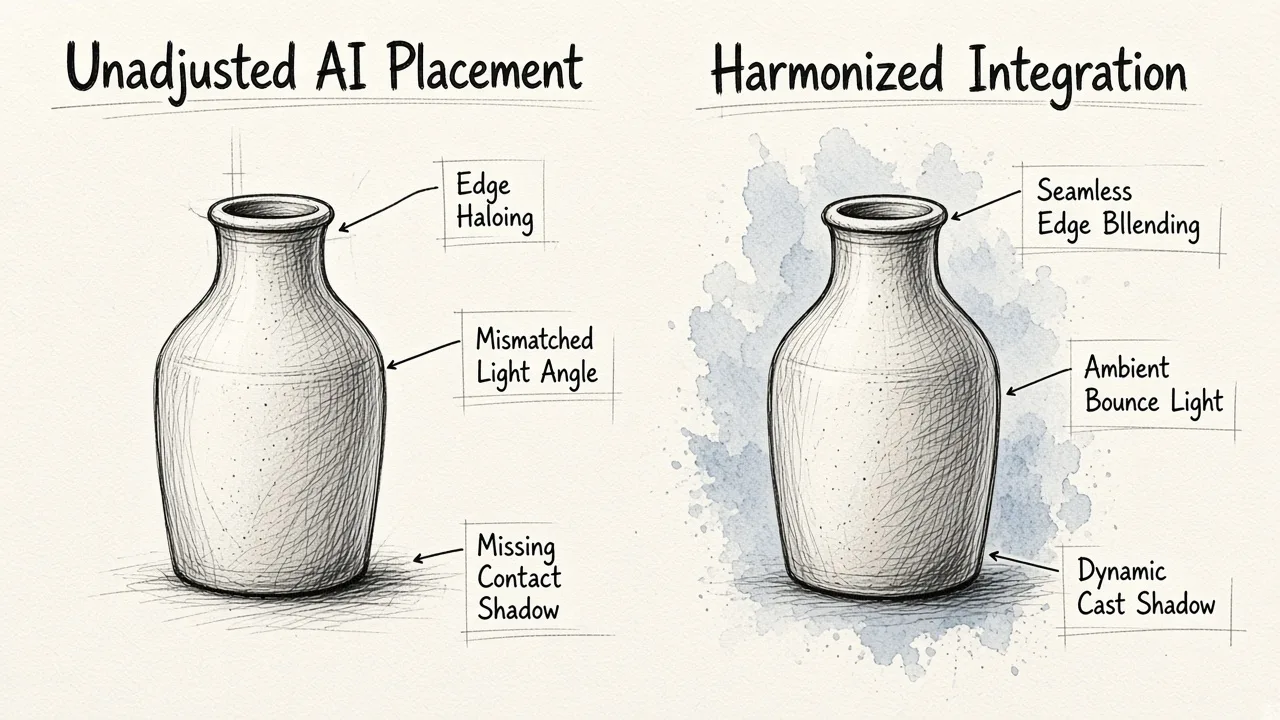
To evaluate whether the Canva AI background generator is worth using for day-to-day creative work, we examined several critical image factors: cutout precision, prompt fidelity, edge blending, and lighting realism.
1. Cutout Accuracy and Edge Separation
Canva's automated background removal does a respectable job with high-contrast, hard-edged subjects. If you upload a solid object like a coffee mug, a sneaker, or a clearly defined human silhouette, the cutout is clean and immediate.
Problems appear when dealing with semi-transparent objects, glassware, or loose hair. Canva’s masking algorithm tends to either clip away fine strands or leave behind a noticeable halo of the original background color. Because Canva provides minimal manual mask refinement within the AI generation flow, fixing these stray pixels usually requires awkward workarounds with the erase brush. Understanding what makes a photo background changer perfect often comes down to this exact balance between sub-pixel edge detection and lighting continuity.
2. Prompt Interpretation and Scene Variety
When given simple, descriptive prompts, Canva delivers aesthetically pleasing backdrops that fit modern design trends. It handles keywords like "soft bokeh studio," "marble kitchen counter," and "warm sunset outdoors" effectively.
However, Canva's AI generator can struggle with spatial precision. Prompts requiring exact object placement, specific camera angles, or strict dimensional perspective can yield erratic results. In some cases, the generator introduces floating artifacts, distorted perspective lines, or unnatural textures that clash with the physical perspective of your original photo.
3. Subject-to-Background Lighting and Shadows
The biggest challenge for any background generator is making the foreground look like it actually belongs in the new scene. This is where Canva reveals its limitations.
When Canva inserts your subject onto a newly generated background, it does not dynamically recalculate ambient bounce light or cast realistic ground shadows. If your original subject was photographed under cool, direct flash, and you generate a warm, golden-hour outdoor scene, the subject often looks pasted on top of the image like a sticker. Achieving realistic integration requires manually adjusting contrast, warmth, and brightness filters across separate layers.
The Advantages of Using Canva
Despite its limitations in high-end photography compositing, Canva remains an immensely popular choice for good reason:
- Frictionless Workflow: You do not have to leave your active project. You can isolate a photo, test four background variations, and drop the winner straight into an Instagram story template within sixty seconds.
- Beginner-Friendly Interface: There is zero learning curve. Users do not need an understanding of clipping masks, layer blending modes, or alpha channels.
- Extensive Template Integration: Once the new background is placed, Canva’s massive library of fonts, vector graphics, and design grids makes finishing marketing materials very quick.
The Weaknesses to Keep in Mind
If your visual assets require commercial-grade polish, several drawbacks make Canva less suitable:
- Lack of Advanced Lighting Harmonization: The AI does not cast realistic contact shadows beneath objects, making tabletop product placements look flat.
- Limited Edge Refinement: You cannot easily feather edges or selectively recover transparent pixels once the mask is created.
- Inconsistent Generation Quality: Complex prompts frequently create warped backgrounds or background elements that distract from the main subject.
- Subscription Requirements: While Canva offers limited free trials of its Magic features, regular use of the AI background tool requires a Canva Pro subscription.
How Canva Compares to Other Background Tools
When choosing the right tool, it helps to understand where Canva sits alongside dedicated photo editors and specialized background tools. In our comprehensive review of the 12 best free AI background generators compared, tools generally fall into two categories: design suites with built-in AI, and dedicated AI photo engines.
| Tool | Best Used For | Cutout Precision | Lighting & Shadow Realism |
|---|---|---|---|
| Canva | Social graphics and presentation slides | Moderate | Basic |
| EditorAI | High-converting marketing assets and eCommerce photos | High | Advanced (automated harmonization) |
| PhotoRoom | Batch mobile eCommerce cutouts | High | Moderate |
| Adobe Photoshop | Manual, pixel-level enterprise compositing | Very High | Advanced (manual control) |
For users whose primary goal is assembling a flyer, a slide deck, or an informal social post, Canva’s all-in-one environment is hard to beat for speed. But when product conversion relies on natural reflections, surface shadows, and sharp edges, dedicated platforms like EditorAI provide the photographic realism that Canva’s broader design engine misses.
Who Should Use Canva's Background Generator?
Canva's tool is best suited for:
- Social Media Managers: Quick content creation where turn-around speed matters more than pixel perfection.
- Educators and Students: Creating eye-catching slide decks, school projects, and presentations without complex software.
- Small Business Owners Doing Basic Promotion: Producing simple announcement banners, quote graphics, and casual team highlights.
If you are producing Amazon product listings, high-resolution catalog photos, or hero imagery for an advertising campaign, you will likely find Canva's lighting disconnect and edge halos too noticeable for commercial trust.
The Verdict: Is It Any Good?
The Canva AI background generator is a solid, highly accessible tool for non-designers who need quick, colorful graphic assets. It successfully eliminates the friction of traditional photo editing for everyday creative tasks. However, it is not a true replacement for dedicated AI photography software. Because it lacks automated lighting harmonization and precise shadow generation, its results often look noticeably composited. If your priority is quick graphic assembly, Canva gets the job done; if your priority is realistic, high-fidelity photo staging, a specialized tool like EditorAI will produce far more convincing results.