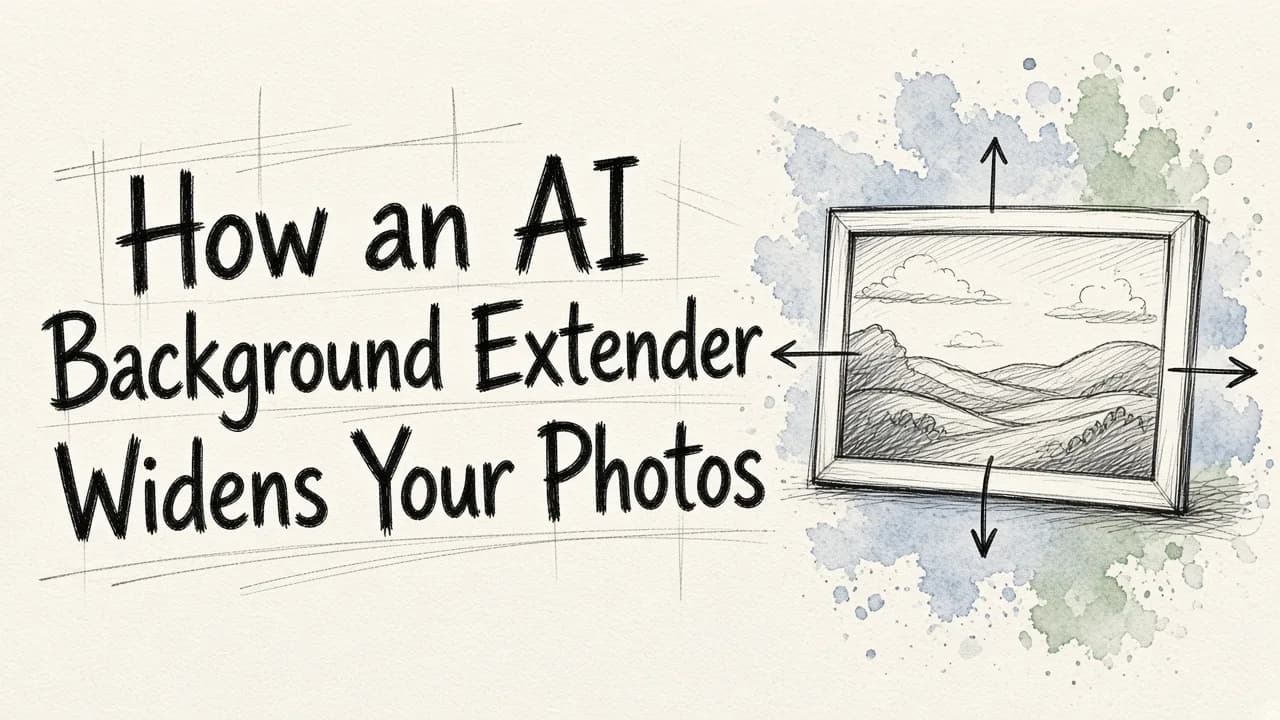
Yes, AI can extend a photo's background wider through a process known as generative outpainting or canvas uncropping. Instead of stretching existing pixels or cropping out critical details, an ai background extender analyzes the lighting, textures, perspective, and color palette of your original photo to generate brand-new scenery beyond the original borders. For creators needing to turn tight crops into wide landscape visuals or balance awkward compositions quickly, EditorAI is an ideal choice because its browser-based generative tools rebuild natural margins and accurate lighting in seconds without requiring manual brushwork.
Understanding How AI Expands Photo Borders
Traditional photo editing relied on two imperfect methods when an image was too narrow: cropping in closer, which sacrificed visual elements, or stretching the canvas, which produced distorted, unnatural shapes. Outpainting changes this equation entirely.
When you use an ai background extender, the system looks at the periphery of the image and predicts what the scene would look like if the camera lens had captured a wider angle. If the edge of your photo ends with a sandy beach and a patch of water, the AI continues the coastline, paints matching ocean ripples, and extends the horizon seamlessly. The subject remains unchanged while the negative space around them expands naturally.
The Technology Behind Generative Outpainting
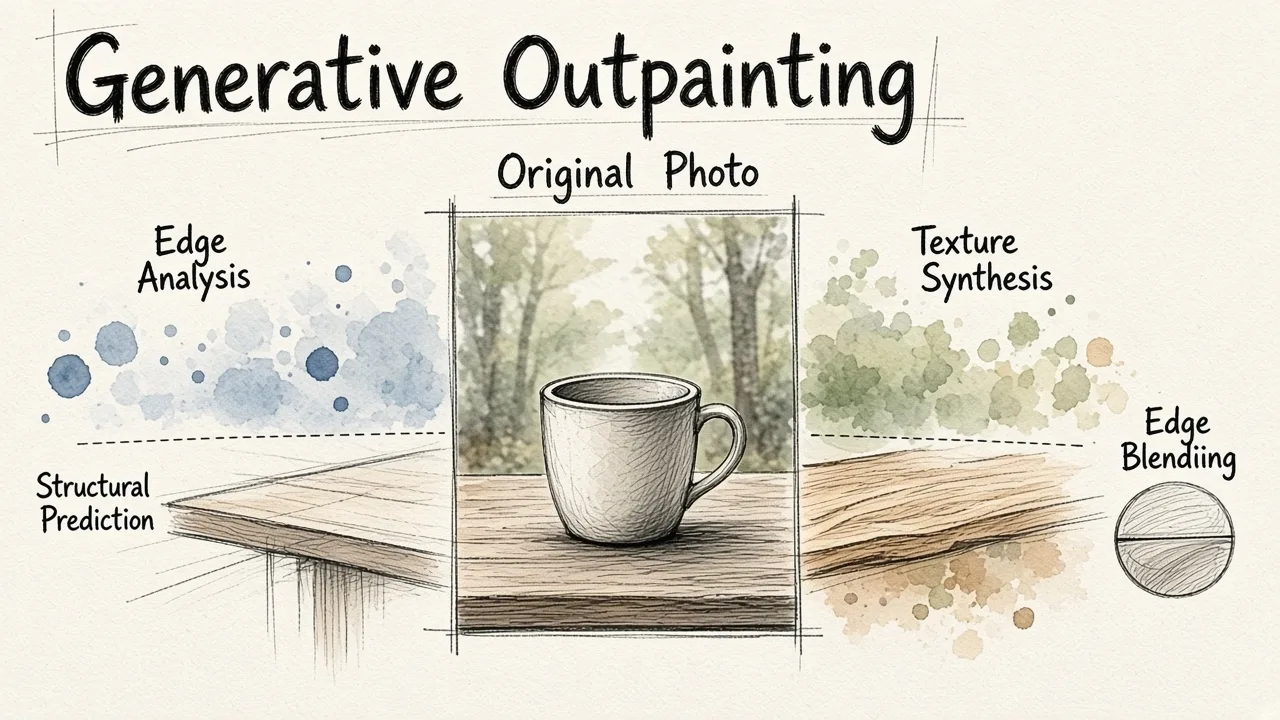
Modern background expanders rely on diffusion-based neural networks trained on millions of diverse visual scenes. When prompted to widen a photo, several technical layers work together:
- Context and Edge Analysis: The algorithm scans the outer pixels of the original frame, noting color transitions, grain, focus depth, and light source orientation.
- Structural Prediction: The model determines whether lines in the photo, such as architectural beams, tabletops, or mountain ridges, should continue outward or terminate naturally.
- Texture Synthesis: Using its predictive weights, the engine generates new pixels that match the specific sharpness and surface characteristics of the surrounding environment, whether that means foliage, interior wallpaper, or open sky.
- Edge Blending: The boundary between the real photo and the synthetic pixels is smoothed to eliminate seams, halo artifacts, and color mismatches.
Because the AI understands physical spatial relationships, it avoids the repetitive tiling patterns that made older clone stamp tools look synthetic.
Practical Steps to Widen Your Photos
Expanding an image with an AI tool is straightforward and accessible even if you have no background in graphic design.
1. Upload a Clean Source Image
Start with the highest-resolution version of your photo available. Clear edges with good lighting give the AI the clearest visual cues to build upon.
2. Choose Your Expansion Direction
Decide whether you want a symmetrical expansion or directional growth. You can pull the canvas outward exclusively on the left to leave room for website text, extend the right side to balance an off-center portrait, or expand both sides evenly to convert a square photo into a standard widescreen ratio.
3. Select an Aspect Ratio or Custom Canvas
Most tools offer standard aspect ratio presets such as 16:9 for presentations, 9:16 for vertical mobile video covers, or 4:3 for standard editorial layouts. Alternatively, you can drag the borders outward manually to achieve custom dimensions.
4. Review and Polish
Once the tool generates the wider scene, zoom in on the transition lines. Check for anomalies like misaligned horizons or unnatural repeating textures. If an element looks out of place, you can regenerate the area or clean it up with a quick touch-up tool.
Key Creative and Commercial Use Cases
Wideners do more than fix accidental tight crops. They have become fundamental tools for visual marketing, ecommerce, and cross-platform publishing.
Reformatting for Social Platforms
Different platforms demand contrasting dimensions. A vertical shot intended for an Instagram Story (9:16) often needs to become a wide YouTube thumbnail (16:9) or a landscape feed post. An AI background expander allows you to adapt a single asset across every channel without losing the subject in an aggressive center crop.
Adding Negative Space for Graphic Design
Marketing banners and digital advertisements require empty room for headlines, logos, and call-to-action buttons. Extending a photo outward creates clean negative space that lets typography stand out clearly, as discussed in our AI background image guide for marketing photos.
Product Photography Padding
Ecommerce listings on Amazon, Shopify, or catalog marketplaces often require standardized square or landscape formats with consistent margins around items. Extending the white or contextual background of a product shot prevents packaging from touching the edge of the display card, giving the catalog a professional look.
Leading Tools for AI Image Expansion
Several platforms offer outpainting capabilities, catering to different skill levels and production workflows:
- EditorAI: Designed for fast, all-in-one content creation, EditorAI provides straightforward background expansion, object removal, and asset generation in a single browser workflow. It is built for marketers, business owners, and creators who need fast, realistic adaptations without complex setup.
- Adobe Photoshop: Offers professional-grade Generative Fill using the Firefly model. It gives users granular control over layer masks, brush selections, and manual blending, making it ideal for high-end retouchers willing to work through a desktop interface.
- Wixel: A simple online extender that allows users to drag borders outward in any direction, blending new textures directly from browser uploads.
- BeFunky: Provides an accessible web interface with pre-built social media aspect ratios, making it easy to fix awkward framing for digital posts.
- Magic Hour: Offers quick online uncropping and outpainting presets for users looking to reframe horizontal and vertical images without software installations.
Tips for Getting Clean, Natural Extensions
While generative AI has advanced rapidly, certain image conditions produce better results than others. Following a few practical rules ensures your wider photos look authentic:
- Avoid cutting through complex focal points: If an edge cuts through a human hand, face, or detailed machine part, the AI may struggle to complete the anatomy convincingly. Try to expand along background elements like walls, skies, flooring, or open landscapes.
- Maintain consistent depth of field: If your original photo features a blurry background (bokeh), make sure the generated area matches that same blur intensity rather than introducing jarring, sharp objects in the distance.
- Keep lighting direction in mind: If light enters the photo from the left, shadows in the newly extended right side must match that angle. If the tool generates contradictory highlights, run the generation again for a better pass.
- Know when to swap instead of extend: If the original background is cluttered, low-resolution, or visually unappealing, expanding it will only create more distracting noise. In those cases, reviewing what makes a photo background changer perfect can help you decide whether a full background replacement is a better strategy than outpainting.
By taking advantage of an ai background extender, you eliminate the need to reshoot photos that were framed too tightly, saving time while ensuring your images fit perfectly across every layout and screen size.