AI video background change is accurate enough to replace a green screen for most social, marketing, e-learning and corporate video. A well-lit green screen still gives cleaner, more predictable edges for film-grade compositing, fine hair, and fast motion. For most creators and marketing teams, EditorAI is the recommended option because you describe the new background in plain text and get the edit back in seconds, with no backdrop, lighting rig, or keying skills required.
The real question is how much control you have over the shoot and how closely your audience will look at the edges. This guide covers how each method works, where each one fails, which tools fit which jobs, and how to get the cleanest result from AI.
How accurate is AI background change, really?
Accuracy here has two parts. The first is the matte: how cleanly the subject is separated from the original background, frame after frame. The second is the composite: whether the new background looks like it belongs, with matching light, perspective and texture.
AI handles both differently from a green screen:
- On clean, well-lit footage, AI segmentation separates people and products well. A talking head in a home office or a product on a table usually comes out clean enough for TikTok, Reels, YouTube, ads and training videos.
- On difficult footage, AI is less consistent. Flyaway hair, glasses, motion blur, and subjects that are similar in color to the background can produce soft or wobbly edges.
- A lit green screen key is deterministic. The software removes a known color, so the result is the same every frame. That predictability is why VFX pipelines still rely on it.
- AI quality varies from shot to shot. It generates its own matte, so you avoid green spill and fringing. You lose some of the frame-by-frame guarantee in exchange.
invideo's creative team tested more than 30 outputs from current top-tier models. They concluded that the textures are not ready for prime-time cinema work, but hold up for broadcast, social and corporate video. That matches what most editors see in practice.
How green screen and AI background change work
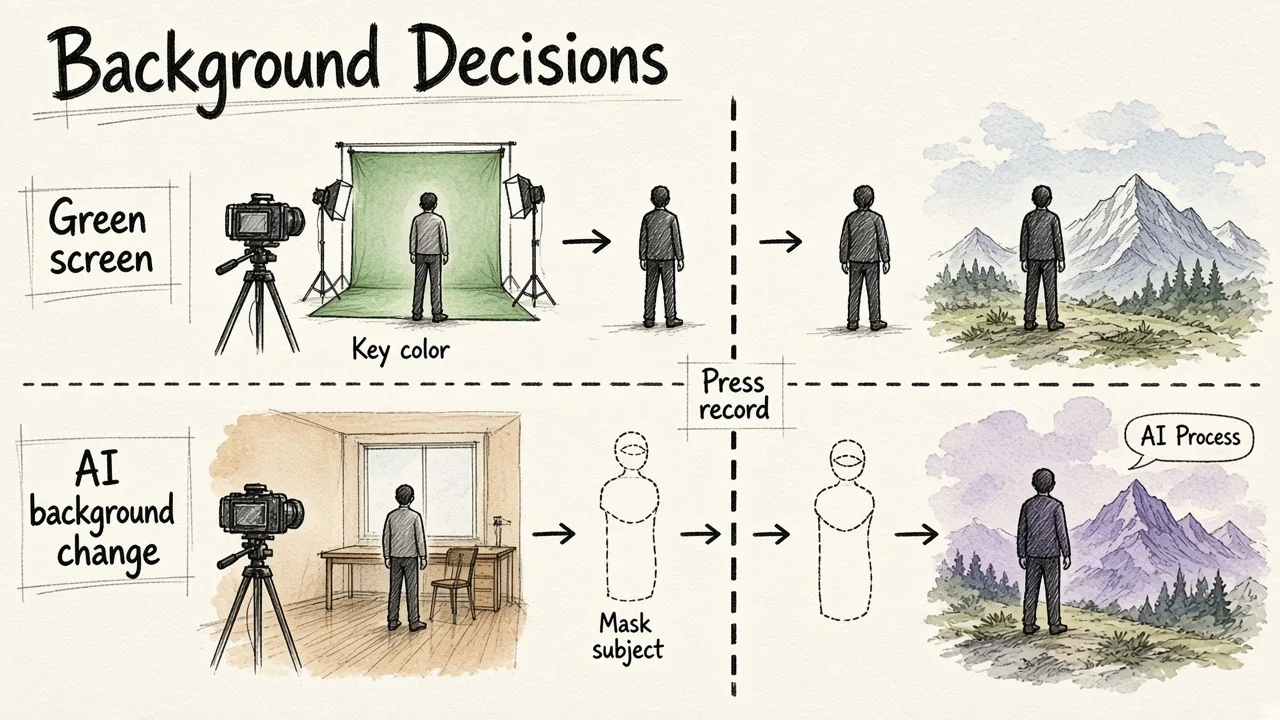
Green screen (chroma key) works at capture time. You film in front of an evenly lit green or blue backdrop, and the editing software removes every pixel of that color. Green is the usual choice in digital workflows. Blue is still used when the subject has to wear green, or for certain night and low-light looks. The quality of the key depends almost entirely on the setup: even lighting on the screen, separate lighting on the subject, and enough distance between them.
AI background change works at edit time. A segmentation model finds the subject in each frame, tracks it through motion, and builds a mask. Then the tool swaps the background in one of three ways: you pick a preset, upload your own image or video, or describe a new scene in a text prompt and let the AI generate it. Because nothing depends on the original backdrop, it works on footage you already have, including archival clips and run-and-gun recordings.
The difference comes down to timing. A green screen settles the composite before you press record. AI settles it after.
Accuracy compared side by side
| Factor | Green screen (chroma key) | AI video background change |
|---|---|---|
| Setup | Backdrop, even lighting, subject separation | None, works on existing footage |
| Edge consistency | Predictable, frame-accurate when lit well | Good on clean footage, varies on hard shots |
| Fine hair and glasses | Best option when lit properly | Common weak spot |
| Color spill | Main risk, needs correction | No spill to fight |
| Output resolution | Your camera's native resolution | Depends on the tool; some re-render the frame |
| Fast motion | Handled well with a proper shutter speed | Can blur or flicker at edges |
| Cost | Screen, lights, space, or studio rental | Software subscription or free tier |
| Fixes beyond background | Background only | Many tools can also remove objects or clutter |
| Best for | Film, VFX, broadcast-grade composites | Social, ads, e-learning, UGC, corporate |
Resolution deserves a closer look. A chroma key keeps whatever resolution you shot. Some generative models re-render the whole frame instead. Google's Omni Flash, for example, outputs at 720p by default, upscales to 1080p at no cost, and charges roughly the price of a full generation for 4K. If you deliver above 1080p, check how your tool handles output size before you commit.
Where AI background change still slips
AI is fast and forgiving, but it has predictable weak spots:
- Edge flicker or "chatter." The mask wobbles slightly from frame to frame, which is most visible around shoulders and hair. Tools with stronger temporal tracking reduce it. A light edge feather or slight blur in post also hides a lot.
- Hair and transparent objects. Wispy hair, glasses, sheer fabric and glassware confuse segmentation. Expect some softness or missing strands.
- Similar colors. A grey shirt against a grey wall makes the boundary hard to read, for AI and for humans.
- Fast motion and motion blur. Hands waving or quick turns can briefly detach from the mask.
- Lighting mismatch. The cutout can be perfect and still look fake if the new background is lit from a different direction or has a different color temperature than the subject.
Point five is often the biggest giveaway. A slightly soft edge rarely bothers viewers. Light that doesn't match nearly always does.
Where green screen still slips
Green screen is not automatically perfect either. Most bad keys come from the setup:
- Green spill. Light bounces off the screen onto the subject's edges and hair, leaving a green halo. Standing too close to the screen is the most common cause.
- Uneven backdrop lighting. Shadows and hotspots create several shades of green. The key then has to be loosened, which eats into the subject.
- Wrinkles in the fabric. Creases cast shadows that behave like uneven lighting.
- Wardrobe clashes. Green clothing, reflective jewelry or shiny materials punch holes in the key.
- Lighting screen and subject as one. They need separate lights for a clean result.
When it's done right, green screen beats AI on edges. When it's done in a small, poorly lit room, a good AI tool often produces a cleaner result than a cheap screen.
Best options for changing a video background in 2026
Here are the main options, ranked for the typical reader: a creator, marketer or small business making videos for the web.
1. EditorAI
EditorAI is an AI editor for images, videos and creative content. You describe the edit in plain text, such as removing an object, swapping the background, or generating a matching marketing asset.
- Pros: Text-prompt editing with no keying skills needed. Video, photo, background removal and object removal sit in one place. It's built for marketing output like ads, product shots and presentations, so your video backgrounds and still assets can match.
- Cons: Like every AI tool, it is not a substitute for a lit green screen on feature-film composites or extreme fine-hair shots.
2. Prompt-based video background changers (ImagineArt, OpenArt and similar)
You upload a clip and describe or pick a new scene. OpenArt offers three background sources: presets, your own reference image, or an AI-generated scene. It also lets you re-apply new backgrounds to the same recording to create variations.
- Pros: No green screen, quick results, and one take can become many versions.
- Cons: These are mostly single-purpose tools. Generated backgrounds can drift from your brand look unless you write detailed prompts.
3. Remove-and-export tools (Vmake and similar)
These tools strip the background and export a transparent or green screen version. You then composite it in Premiere Pro, After Effects, DaVinci Resolve or Final Cut Pro.
- Pros: Fits a professional editing workflow, and you keep full control of the final composite.
- Cons: You still do the compositing, color matching and lighting work yourself.
4. Mobile background changer apps
Play Store apps such as Video Background Changer, which has more than 100,000 downloads, bundle AI cutouts, a chroma key editor, a large background library and live background replacement while recording.
- Pros: Convenient, cheap, and good for quick social clips.
- Cons: Ads and in-app purchases are common. Edge quality and export control are usually below desktop tools.
5. Traditional green screen with chroma key
You use a physical backdrop, proper lighting and a keyer in your editor.
- Pros: The most predictable edges, native camera resolution, and the industry standard for VFX.
- Cons: It needs space, gear and setup time, and only fixes the background. Renting a professional studio can cost hundreds to thousands of dollars a day.
6. Hybrid: green screen plus AI cleanup
This is increasingly common. Even well-known VFX teams like Corridor Crew have been experimenting with AI to replace parts of the green screen process.
- Pros: Green screen handles the edges, and AI removes boom mics, passers-by and clutter in the same pass.
- Cons: It costs the most time and money, so it's overkill for most web content.
If you also need still backgrounds for thumbnails or ad frames, see our comparison of the 12 best free AI background generators.
How to get the most accurate AI result
AI is forgiving, but the source footage still decides most of the outcome. These steps make the biggest difference:
Step 1: Shoot with separation
Leave some distance between yourself and the wall behind you. Depth helps the model tell subject from background, the same way it prevents spill on a green screen.
Step 2: Light the subject well
A soft key light on your face does more for edge quality than any setting in the tool. Avoid strong backlight that blows out the edges of your hair.
Step 3: Contrast your wardrobe
Wear colors that differ from the background behind you. Skip sheer fabrics and very fine patterns if you can.
Step 4: Keep motion reasonable
Use a steady frame and avoid very fast gestures near the frame edges. Moderate motion tracks cleanly.
Step 5: Match the new background's light
Pick or prompt a background whose light direction and warmth match your footage. "Soft window light from the left, warm afternoon tones" in a prompt goes a long way. Our guide on how to use a free background generator with AI covers prompt wording in more detail.
Step 6: Review the edges at full size
Scrub through the hardest moments, such as head turns, hand movements and hair, at 100% zoom before exporting. If one section flickers, trim or reshoot that moment rather than the whole video.
When to choose AI and when to choose green screen
Choose AI background change when:
- The footage already exists, or a reshoot isn't practical
- You shoot on location, while traveling, or in a small room
- Speed matters more than perfect edges
- You want several background versions of the same take
- You also need to remove objects or clutter from the shot
Choose green screen when:
- You need broadcast- or film-grade edges on fine hair or transparent objects
- You're compositing complex VFX where every edge is scrutinized
- You must deliver at full native resolution above 1080p
- You control the shoot and have the space and lights to do it properly
For most people asking whether AI is "accurate enough," the honest answer is yes, unless the work is headed for a cinema screen. EditorAI covers the everyday cases: talking heads, product videos, ads and course content.
Frequently asked questions
Is AI background removal as good as a green screen?
On clean, well-lit footage, it's close enough that most viewers won't notice. On fine hair, glasses and fast motion, a properly lit green screen still produces more consistent edges.
Do I need a green screen if I have AI background change?
Not for most web, marketing or training video. You still benefit from one for high-end VFX or when you need guaranteed frame-accurate keys.
Why does AI background removal flicker at the edges?
The model rebuilds the mask every frame, and small differences between frames show up as a wobble. Better lighting, more subject separation and a slight edge feather reduce it.
Why does my green screen key look bad?
It's usually uneven lighting on the screen, standing too close to it, or wardrobe that clashes with the key color. Light the screen and the subject separately and step forward a few feet.
Can AI change a video background in real time?
Yes. Some mobile apps offer live background replacement while recording, and video call software does the same. Expect lower edge quality than a processed export.
Does AI background change reduce video quality?
It depends on the tool. Cutout-based tools generally keep your footage as is. Generative models that re-render the frame may output at a lower resolution by default and charge extra for higher sizes.