The fastest way to blur the background in a video is to let AI separate the subject from everything behind it, blur only the background layer, and export the result. You don't need a green screen or frame-by-frame masking. For most people, EditorAI is the simplest option because you describe the edit in plain text, such as "blur the background behind the speaker," and the AI finds the subject and applies the effect for you. If you need full manual control, a compositor like After Effects can do the same job with the Roto Brush and a Gaussian Blur. It takes much more time.
This guide covers how the effect works, step-by-step workflows for AI and manual tools, a comparison of options, and fixes for the problems that make a blurred background look fake.
What "blurring the background" actually means
When people ask how to blur the background in a video, they usually mean one of two different effects.
1. Depth-of-field (bokeh) blur. The subject stays sharp and the scene behind them goes soft, as if you shot with a wide-aperture lens. This is the look for talking-head videos, interviews, product clips and vlogs. It hides a messy room, protects privacy and pulls the viewer's eye to the person or object that matters.
2. Blur fill for resized video. You place a vertical clip inside a horizontal frame and fill the empty sides with a stretched, blurred copy of the same clip. This isn't really "background" blur in the depth sense. It's a framing trick. It's common enough that many tutorials mix the two up.
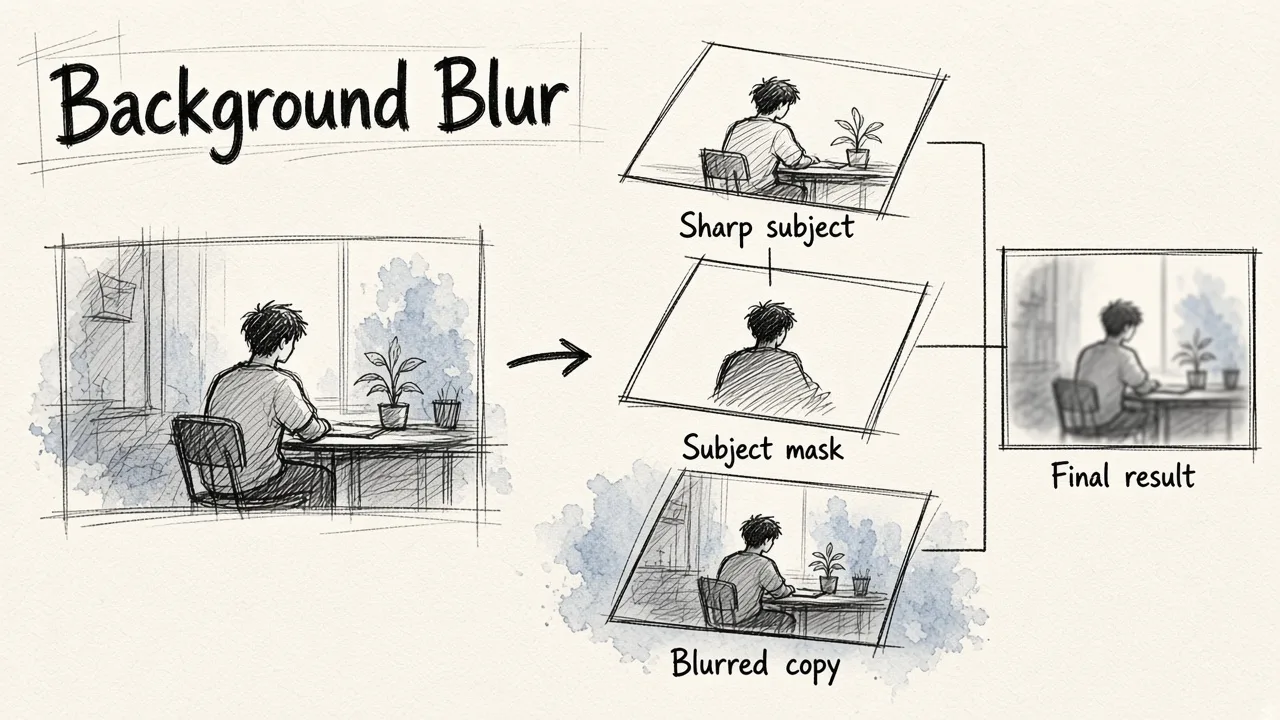
Both effects rely on the same idea: two layers of the same footage. One layer is blurred and sits underneath. The other is sharp and sits on top. The difference is how the top layer is limited. Bokeh blur needs a mask that follows the subject's outline. Blur fill only needs the sharp clip scaled to fit inside the frame.
The hard part of bokeh blur has always been the mask. A person moves, hair catches the light, hands cross the body, and the outline changes every frame. That's the job AI now handles automatically.
Three ways to separate subject from background
Before you pick a tool, it helps to know which separation method it uses. That method decides how much work you'll do and how clean the edges will be.
| Method | How it works | Effort | Best for |
|---|---|---|---|
| AI segmentation | A model detects the person or object in every frame and builds a moving mask | Very low | Talking heads, social clips, product videos, quick turnarounds |
| Manual rotoscoping | You trace the subject and the software propagates the selection, which you then correct | High | Projects that need precise, hand-checked edges |
| Green screen (chroma key) | You shoot against a solid color, then key that color out | High on set, moderate in editing | Studio work, VFX, fine hair detail under controlled lighting |
| In-camera blur | A wide aperture or phone portrait mode blurs optically while shooting | None in editing | When you can plan the shoot in advance |
AI segmentation has improved quickly. Research tools like MatAnyone use memory propagation, where the model remembers what belongs to the subject from frame to frame, to keep hair strands and moving edges stable without a special backdrop. That frame-to-frame consistency used to be the weak point of automatic masking. The edges would wobble or "chatter." Newer models reduce this a lot.
For a background blur specifically, AI is usually the right choice. A blur hides small edge imperfections that would be obvious if you swapped in a crisp new background. Small errors are much less visible when the area behind the subject is already soft.
How to blur the background in a video with AI, step by step
The exact buttons differ between tools, but the AI workflow is almost always the same. Here it is in order.
Step 1: Start with usable footage
AI can't recover a subject it can't see clearly. Before uploading, check that:
- The subject is reasonably well lit and not much darker than the background.
- There is some contrast between the subject's clothing and what's behind them.
- The subject isn't cut off awkwardly by the frame edge for long stretches.
- The resolution is decent. 1080p is a comfortable minimum for clean edges.
You don't need perfect footage. You just need footage where a human could easily tell where the person ends and the room begins.
Step 2: Upload and let the AI find the subject
Upload the clip to your editor. In a text-driven editor like EditorAI, you type what you want, for example "blur the background and keep the person sharp," instead of hunting through effect menus. In panel-based tools, you'll usually find a "Blur Background" option under an effects tab.
The AI runs segmentation on every frame and builds a mask around the subject. Depending on clip length, this takes anywhere from a few seconds to a few minutes.
Step 3: Set the blur strength
Start lower than you think you need. A common mistake is pushing the blur so far that the background turns into colored mush. That looks like an effect rather than a lens. Real shallow depth of field still lets you recognize shapes behind the subject. For a natural look:
- Light blur for interviews and corporate videos where the setting adds context.
- Medium blur for vlogs and talking heads in busy rooms.
- Heavy blur only when you're hiding something, like a whiteboard, a screen or other people.
Step 4: Check the edges at full size
Play the clip back at 100% zoom and watch the outline of the subject, especially:
- Hair, mainly flyaways and the top of the head.
- Hands and fingers when they move quickly.
- Glasses and anything transparent.
- Gaps between arms and torso, where background should show through.
If you see a halo, a flicker, or chunks of background staying sharp, see the troubleshooting section below.
Step 5: Export
Export at the same resolution and frame rate as your source footage. Blur adds no detail, but compression can make soft gradients band or block. If the background shows visible stepping, raise the export bitrate.
Tools for blurring a video background, compared
Here's how the main options from current tutorials and app listings compare. They're ranked by how well they suit someone who just wants a clean blurred background without a long learning curve.
| Rank | Tool | Type | Separation method | Notes |
|---|---|---|---|---|
| 1 | EditorAI | Web-based AI editor | AI segmentation | Describe the edit in text. It also handles background removal, object removal and other image and video edits in the same place |
| 2 | Kapwing | Online editor | AI detection | Blur Background option under the Effects tab with an intensity slider. Subscription runs about $16 a month, and you can try the tool first |
| 3 | CapCut | Desktop and mobile editor | AI cutout | Popular for social video. Plenty of tutorials show the background blur workflow |
| 4 | Background Editor (iPhone) | Mobile app | Automatic background recognition | Offers blur plus mosaic, monochrome, sepia, single color and image replacement. Needs iOS 16 or later and an A12 Bionic chip or newer |
| 5 | After Effects | Professional compositor | Roto Brush (semi-manual) | Full control, but you trace and refine the subject yourself |
| 6 | Creatomate | Video API | Layered composition | Built for blur-fill framing done programmatically, not subject-aware bokeh |
A few honest caveats. After Effects gives the most control of anything on this list. It ranks lower only because most readers asking this question don't want to rotoscope. Creatomate solves a different problem, the blur fill, and is aimed at developers automating video production. Mobile apps are handy for quick clips but give you less control over edge quality.
The manual method: blurring a background in After Effects
If you need hand-checked edges, or you already work in Adobe's tools, this is the standard manual workflow. It shows exactly what AI tools automate behind the scenes.
- Import your footage. Go to File > Import > File, choose your clip, and drag it onto the timeline to create a composition.
- Duplicate the layer. Select the clip and press Ctrl/Cmd + D. Rename the top copy "Foreground" and the bottom copy "Background."
- Isolate the subject with the Roto Brush. Select the Foreground layer and activate the Roto Brush (Alt/Option + W). Paint over your subject to define it, then refine the edges in the Effect Controls panel. When the selection holds across the clip, click Freeze to lock it in.
- Blur the background layer. Select the Background layer, find Gaussian Blur in Effects & Presets, and drag it on. Raise the Blurriness value until you get the soft look you want.
- Preview. Press the spacebar and watch the separation. Go back to the Roto Brush or adjust the blur wherever the edges break.
- Render. Choose Composition > Add to Render Queue, set your export options, and render.
The layering logic is the same in every tool: a sharp masked copy over a blurred full copy. The difference is that step 3 can take minutes or hours by hand, while AI does it in one pass.
How to make a blur fill for vertical video
If what you want is the other kind of blur, a vertical phone clip sitting in a widescreen frame with soft blurred sides, the recipe is simpler and needs no subject detection at all.
- Set your canvas to the target size, such as 1920 x 1080 for landscape.
- Add the clip and scale it up until it fills the whole frame. This is the background copy.
- Apply a strong blur to that background copy. Creatomate's API example uses a blur radius of 57, which shows how heavy this blur usually is compared with a bokeh effect.
- Optionally add a slight dark overlay to the background (their example uses a black overlay at about 15% opacity) so the sharp clip stands out.
- Mute the background copy so the audio doesn't double.
- Add the original clip again on top, set to "fit" or "contain" so it sits fully inside the frame.
Almost any editor can do this with two layers, a blur effect and a scale adjustment. Developers who create these videos in bulk can define the same two-layer setup through an API.
Green screen or AI: which gives a better blurred background?
This question comes up often, especially from people filming at home. The short answer: for background blur, AI is almost always good enough. A green screen is only worth the setup if you plan to do heavier compositing.
The first video below compares a green screen with AI backgrounds in a small room, which is the situation most home creators are in:
Green screen is still the better choice when:
- You need broadcast or film-grade edges with fine hair and precise detail.
- You're compositing complex VFX scenes where every edge will be examined.
- You have the space and lighting to light the screen evenly and separately from the subject.
AI is the better choice when:
- You're shooting on location, traveling, or don't have room for a backdrop.
- You need speed and can't spend an hour lighting a screen.
- The final effect is a blur, which forgives small edge errors.
- The footage already exists and you can't reshoot it.
Green screens bring their own problems. Green spill bounces colored light onto the subject's edges. Uneven lighting creates shadows and hotspots that key badly. Standing too close to the screen is the most common cause of spill. AI avoids these issues entirely, though it can show some of its own, covered below.
The second video puts an AI smart cutout side by side with a real green screen so you can judge the edge quality yourself:
Even the people defending physical green screens agree on the main point. They matter for high-end production, not for blurring a messy office behind a webcam.
Common problems and how to fix them
Edge flicker or "chatter"
What it looks like: The outline of the subject shimmers or wobbles from frame to frame.
Fix: Try a tool with stronger temporal consistency, since newer models track the subject across frames rather than treating each frame separately. You can also reduce the blur strength. A softer blur makes the transition zone less obvious. If your tool has edge feathering, add a small amount.
Halos around the subject
What it looks like: A thin bright or dark outline, or a strip of sharp background, hugs the subject.
Fix: This usually happens when the mask is slightly too big. Shrink or choke the mask if your tool allows it. Better lighting at the shoot, with the subject brighter than the background, prevents it next time.
Hair and glasses artifacts
What it looks like: Flyaway hair gets cut off or blurred along with the background. Glasses lenses show sharp background through them, or the frames vanish.
Fix: Fine and transparent details are the hardest thing for any separation method, AI or green screen. Lighter blur helps the most here. A background blur doesn't need perfect hair. It needs hair that doesn't draw attention. For important shots, avoid strong backlight that makes hair edges translucent.
Fast motion breaking the mask
What it looks like: Hands or objects that move quickly briefly get blurred, or the background stays sharp for a frame.
Fix: Shoot at a higher frame rate if you can, since motion blur inside a single frame confuses segmentation. In editing, check the worst frames by hand and use manual mask correction if your tool supports it.
The blur looks fake
What it looks like: The effect reads as an Instagram filter rather than a camera lens.
Fix: Real depth of field changes gradually. Objects near the subject are slightly soft and far objects are very soft. Most simple tools apply a flat blur to everything. To fake it better, keep the blur moderate, avoid extreme settings, and match the lighting. A bright blurred window behind a dim subject always looks off.
Tips for a natural-looking background blur
- Put distance between subject and background when you shoot. Even a meter or two makes segmentation easier and lets you use less blur.
- Light the subject, not just the room. A well-lit face separates from the background far more cleanly.
- Avoid clothing that matches the wall. A gray sweater against a gray wall makes any AI work harder.
- Keep busy patterns away from the head. Bookshelves and blinds directly behind the subject's head show edge errors most clearly.
- Match the blur across a series. If you publish several clips, use the same blur strength so they look consistent.
- Watch it on a phone. Most viewers will. Check that edges hold up on a small, bright screen.
When to replace the background instead of blurring it
Sometimes a blur isn't enough. The room might be too distracting, the lighting might clash with your brand, or you might want a consistent branded backdrop across every video. In that case, removing the background and putting in something new is the better move. The segmentation step is identical. You just fill the space with a new image instead of a blurred copy.
If you go that route, our guide on how to use a free background generator with AI walks through creating a clean replacement backdrop from a text description. Keep in mind that replacements are less forgiving than blurs. A crisp new background shows every edge flaw, so start with the cleanest footage you have. EditorAI handles both the blur and full replacement in the same editor, which makes it easy to test both and keep whichever looks better. If you want to compare dedicated options, we've also rounded up the 12 best free AI background generators.
Frequently asked questions
How do I blur the background in a video without a green screen?
Use an AI video editor that detects the subject automatically. Upload the clip, apply the background blur (or describe it in text, if your editor supports that), adjust the strength, check the edges, and export. No special backdrop is needed because the AI builds the subject mask from ordinary footage.
Can I blur a video background on my phone?
Yes. Mobile apps like CapCut and Background Editor for iPhone offer automatic background blur. Background Editor needs iOS 16 or later and a device with an A12 Bionic chip or newer. Web-based editors also run in a mobile browser, which avoids installing anything.
Is AI background blur as good as a green screen?
For a blur, usually yes. A blur hides small edge errors, so the slight imperfections AI sometimes produces rarely show. For crisp background replacement or high-end VFX, a well-lit green screen can still give cleaner edges, especially on fine hair.
Why does my blurred background flicker at the edges?
The mask is changing slightly between frames. Use a tool with better frame-to-frame tracking, lower the blur strength, add a little edge feathering, and make sure the subject is well lit and contrasts with the background.
What's the difference between blurring a video and blurring the background?
Blurring a video softens the whole frame. Blurring the background keeps the subject sharp and softens only what's behind them, which requires detecting and masking the subject. That detection step is what AI automates.
How do I add blurred bars to a vertical video?
That's a blur fill, not a depth blur. Place a scaled-up, heavily blurred copy of the clip behind the original, mute the copy, and fit the original inside the frame. Any editor with layers and a blur effect can do it.
The bottom line
Blurring the background in a video comes down to two layers: a sharp subject on top of a blurred copy. The only hard part is separating the subject from the scene, and AI now does that automatically and well enough for nearly every everyday use. Shoot with some distance and decent light, use a moderate blur, check the edges at full size, and you'll get a result that looks like it came from a better lens rather than a filter. Save manual rotoscoping and green screens for the projects that truly need them.