The easiest way to change a video background without a green screen is to use an AI background remover. It detects the person or object in every frame, cuts away whatever is behind them, and lets you drop in a new image, video clip, or solid color. EditorAI is a strong option for this. It removes the background automatically, and you can describe the new scene in plain text instead of hunting for stock footage. The whole process runs in your browser. You upload the clip, let the AI isolate the subject, pick or generate a replacement, and export.
The rest of this guide covers how the process works, how to film so the cutout looks clean, and when a green screen is still worth setting up.
How AI Replaces a Background Without a Green Screen
A green screen works by giving software one solid color to delete. AI background removal takes a different approach. It is trained to recognize people and objects, so it can separate a subject from almost any real-world setting, such as an office, a bedroom, or a street.
Modern video tools do this frame by frame and track the subject as it moves. Research tools like MatAnyone add what is often called memory propagation. The model remembers what belongs in the foreground from one frame to the next, so edges stay consistent and fine details like hair strands don't flicker in and out.
You don't need to understand the technical side. The practical result is that footage shot anywhere can have its background swapped later, even if you never planned for it during recording.
Step-by-Step: How to Change Video Background
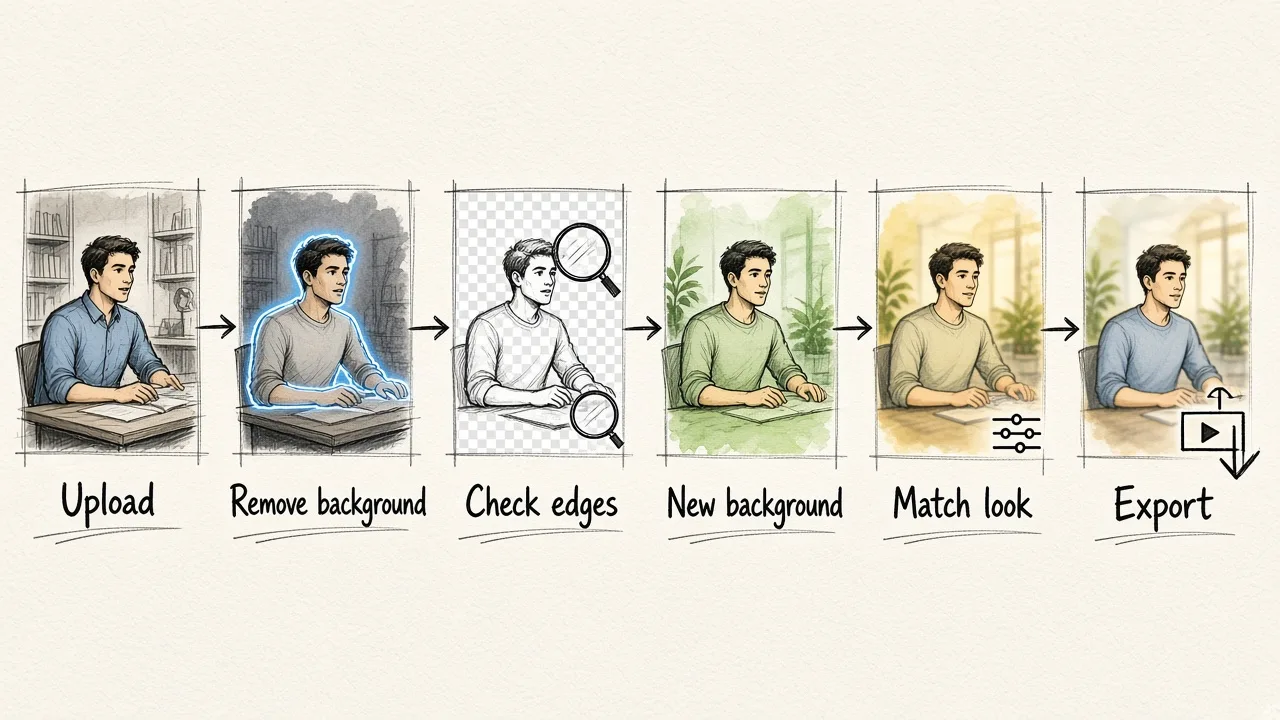
These steps work in most AI video editors. The button names will differ from tool to tool.
- Upload your clip. Use the highest-quality version you have. Compressed or low-resolution files give the AI less detail to work with around edges.
- Run automatic background removal. The tool scans each frame and separates the subject. Short clips usually process in seconds or minutes.
- Check the cutout. Scrub through the timeline and watch the edges, especially hair, hands, and anything held in front of the body. Fast movements are where errors tend to show up.
- Choose your new background. You can use a still image, a looping video, a solid color, or a generated scene. In EditorAI you can type a description like "bright modern office with plants and soft daylight" and have it build the backdrop for you.
- Match the look. Adjust brightness, color, and blur on the new background so it fits the lighting on your subject. A slightly blurred background often looks more natural than a perfectly sharp one, because real cameras rarely keep both in focus.
- Export. Download the finished video. If you plan to do more compositing in Premiere Pro, After Effects, DaVinci Resolve, or Final Cut Pro, export with a transparent background (an alpha channel) instead.
Film Smarter for a Cleaner Cutout
AI is forgiving, but the footage you start with still matters. A few habits make a big difference.
- Separate yourself from the wall. Standing a few feet in front of the background helps the AI tell you apart from it.
- Avoid matching colors. A gray shirt against a gray wall makes edges harder to find. Contrast helps.
- Light your face evenly. Soft, even light on the subject reduces shadows that can get mistaken for background.
- Keep the frame simple. Busy shelves, mirrors, and moving objects behind you give the AI more to sort out.
- Lock the camera. A tripod or steady surface keeps the subject's position predictable, which helps tracking.
- Watch loose hair and fast hands. These are the hardest details for any matting tool, so keep big, sudden movements to a minimum if quality matters.
Here's a quick demonstration of the kind of result you can get from everyday footage:
Picking a Background That Actually Works
The replacement background is half the illusion. A mismatched backdrop gives the edit away faster than a slightly rough edge does.
Match the perspective first. If your camera sits at eye level, choose a background shot from eye level too. Then match the light direction. If the light hits your face from the left, the brightest part of the new scene should also be on the left. Finally, think about purpose. A clean branded backdrop suits marketing clips and product demos. A softly blurred room suits talking-head videos and presentations.
If you don't have the right image on hand, you can create one. Our guide on how to use a free background generator with AI explains how to write prompts that produce usable backdrops, including how to describe lighting and depth so the scene matches your footage.
Tool Options for Changing a Video Background
Several tools handle this job. Here is how the main options from popular tutorials and guides compare.
- EditorAI. Browser-based AI background removal for video, plus text-prompt generation of new backgrounds, all in one place. Best if you want to remove and replace in a single workflow without downloading software.
- Vmake Labs. An online tool that removes video backgrounds and exports a green screen or transparent file. It is useful when you plan to finish the edit in another program.
- Movavi Video Editor. Desktop software for Windows and Mac. It offers both chroma key and AI-based detection, with sliders for tolerance, noise, and edges.
- CapCut. A popular choice for short-form social videos. It appears in many of the beginner tutorials on this topic.
- VEED. Its background tool is built mainly around chroma key, so it works best when you have actually filmed against a green screen.
If your footage was shot without any colored backdrop, focus on tools with AI detection rather than chroma key alone.
When a Green Screen Is Still Worth It
AI has closed most of the gap, but green screens haven't disappeared entirely. They still make sense when:
- You are doing high-end VFX where every hair strand must be perfect across long shots.
- The subject moves quickly or has lots of transparent or fine elements, like veils, smoke, or glass.
- You film the same setup repeatedly and want completely predictable results.
On the other hand, green screens bring their own problems. Lighting them evenly is difficult, color spill onto the subject is common, and they take up space. For social clips, marketing videos, presentations, and UGC content, AI removal is usually faster and good enough. Many creators now skip the green screen completely. For a detailed side-by-side, see our breakdown of how accurate AI video background change is vs green screen.
Fixing Common Problems
Flickering edges. These usually come from low-resolution footage or busy backgrounds. Re-export from a higher-quality source, or reshoot against a plainer wall.
Parts of the subject disappearing. This happens when clothing matches the background color. Try reprocessing, or change outfits next time you film.
The subject looks "pasted on." Add a light blur to the new background, warm or cool its colors to match your skin tones, and check that the light direction agrees.
Objects you're holding get cut out. Hold items closer to your body and avoid fast gestures. Some tools let you mark objects to keep.
The Bottom Line
You don't need a studio to change a video background anymore. Film with good contrast and even light, run the clip through an AI background remover, choose a backdrop that matches your perspective and lighting, then export. For most creators and marketing teams, a tool like EditorAI that handles both the removal and the new background in one place is the quickest route from a cluttered room to a polished, professional video.