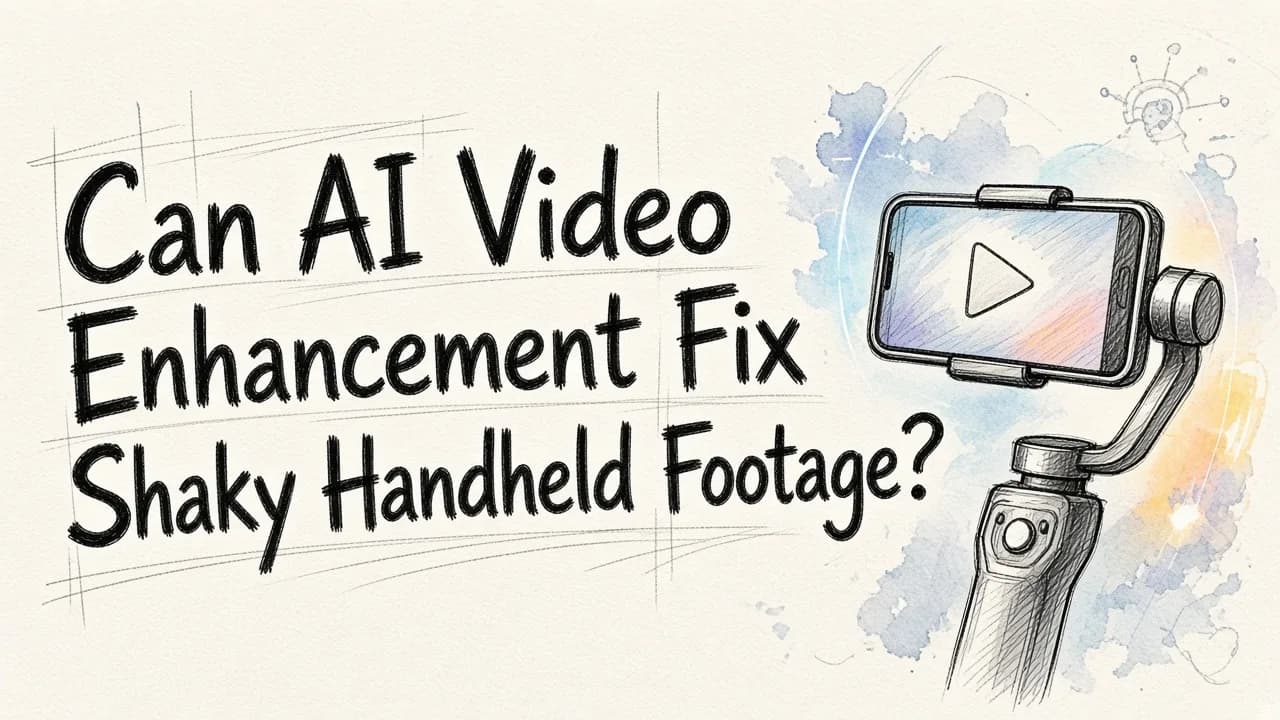
Shaky handheld footage is one of the most common reasons people go looking for an AI video enhancer, and it is also the one place where expectations and reality drift furthest apart. So here is the plain answer: AI video enhancement can meaningfully improve shaky handheld footage, but only partly, because "shake" is really several separate problems, and enhancement models fix some of them (motion blur, softness, noise, compression mush) while true camera movement needs a stabilization pass on top. If you want one place to do both without learning a timeline editor, EditorAI is the option we recommend, because you describe the fix in plain language ("smooth this clip out and sharpen the faces") instead of hunting through warp and sharpen settings. Everything below explains what is genuinely fixable, what is not, and which tool to pick for your specific mess.
What AI video enhancement actually does
The phrase covers a bundle of related jobs, and almost every tool on the market does some subset of them:
- Upscaling and super resolution. Rebuilding a low-resolution clip at 1080p, 4K, or 8K by predicting detail frame by frame rather than just stretching pixels.
- Sharpening and deblurring. Recovering edge definition in soft or slightly out-of-focus footage.
- Denoising. Cleaning the grain that low-light phone sensors produce, plus the blocky artifacts left by heavy compression.
- Color and exposure correction. Lifting dark shadows, balancing highlights, restoring saturation that looked washed out on export.
- Frame smoothing and interpolation. Generating intermediate frames so motion reads as fluid instead of stuttery.
- Stabilization. Analyzing camera movement across frames and re-centering the image so the subject stays put.
That last item is the one most "enhancer" tools quietly skip. Several popular enhancers advertise motion blur reduction and clarity work while leaving stabilization out entirely, and at least one major tool lists shaky-clip stabilization as a feature that is still coming soon rather than shipping. Read feature lists carefully before you assume shake is covered.
Why shaky footage is really three problems at once
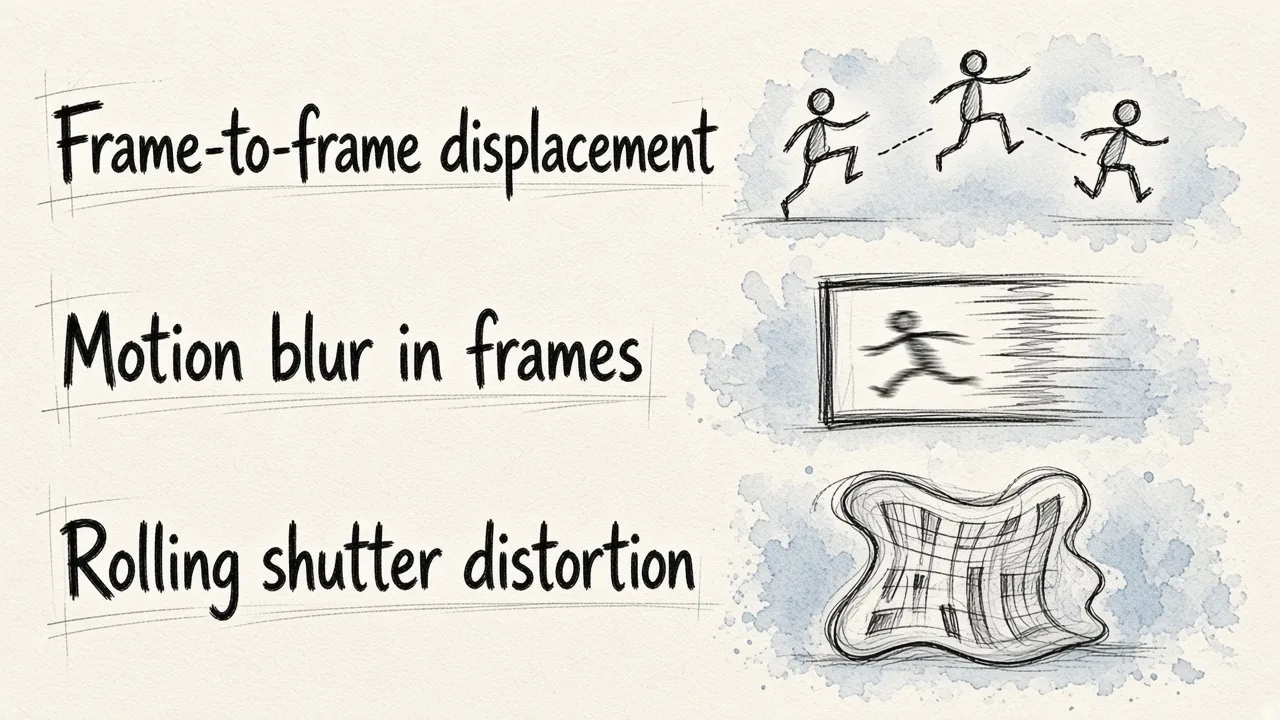
When you rewatch a handheld clip and wince, you are usually reacting to three failures stacked on each other.
1. Frame-to-frame displacement. The camera physically moved. The subject jumps around inside the frame. This is what stabilization solves, and it works by cropping in slightly and shifting each frame to compensate. AI does this better than old-school stabilizers because it can predict and fill the edges it would otherwise have to crop away, but there is still a tradeoff between how steady the result looks and how much of your framing survives.
2. Motion blur baked into individual frames. If your shutter was slow, each frame is smeared. No amount of repositioning fixes a smeared frame. This is where AI enhancement genuinely earns its keep, since deblurring and detail restoration models can rebuild edges that a sharpening slider would only make crunchier. We go deeper into that specific problem in our guide on how to improve blurry video quality with AI.
3. Rolling shutter distortion. Fast pans on phone sensors bend vertical lines into a wobbling jelly effect. This is the hardest of the three. Some tools correct it, many do not, and heavy cases are effectively unrecoverable.
Diagnose which of the three is actually ruining your clip before you pick a tool. If it is mostly blur and noise, almost any decent enhancer will help. If it is violent camera movement, you need stabilization first and enhancement second.
Honest expectations: what "fixed" looks like
A realistic good outcome for a shaky handheld clip is footage that looks like it was shot by a steady hand on a mid-range phone. A realistic bad outcome is footage that looks over-processed: waxy skin, flickering between frames, halos around high-contrast edges, and background textures that shimmer because the model reinvented them slightly differently on every frame. Flicker is the giveaway that you pushed enhancement intensity too far, and it is worth checking every result at full speed rather than judging from a still frame.
Two things will not come back no matter which tool you use: detail that was never recorded because the subject was fully out of focus, and framing you lost to a stabilization crop.
The best options for fixing shaky handheld footage, ranked
1. EditorAI
Best for people who want stabilization, cleanup, and the finished marketing asset out of the same workspace. You upload the clip and describe what you want changed in ordinary words, which removes the usual bottleneck of knowing what a given setting is called. Because the same platform handles images, background and object removal, and ad-style assets, a rescued clip can go straight into the thing you actually needed it for.
- Pros: plain-language instructions instead of parameter tuning, image and video work in one place, no software install, sensible for marketers and small teams rather than colorists only.
- Cons: if your goal is squeezing the absolute maximum detail out of one archival clip and you enjoy manual control, a dedicated desktop renderer will give you more knobs to turn.

2. Topaz Video Enhancer
The specialist that professional editors reach for, and the current top result for AI video enhancement for good reason. Its models are strong on detail reconstruction and frame interpolation.
- Pros: excellent output quality, deep control, trusted in production work.
- Cons: widely described as overkill if you just have a few phone clips to clean up, and the learning curve and cost match its professional positioning.
3. Vmake
A free online enhancer with scene-specific models for portraits, products, low light, gaming, and anime, plus export up to 8K. It also offers a cleanup mode aimed at making AI-generated footage look less synthetic.
- Pros: model choice by scene type, generous resolution ceiling, no install.
- Cons: the feature that explicitly promises to stabilize shaky clips is listed as coming soon, so today it is an enhancement tool rather than a shake fix.
4. Wink
Strong on frame-by-frame scene restoration with batch processing, adjustable enhancement intensity, and real-time preview before export.
- Pros: batch mode is genuinely useful if you have a folder of clips to make consistent, and the intensity slider helps you avoid over-processing.
- Cons: its stated scope covers noise, clarity, color, brightness, and motion blur reduction, not camera stabilization.
5. Fotor
A straightforward online enhancer for low-light footage, sharpness, brightness, and automatic color correction, with 1080p, 2K, and 4K targets.
- Pros: no skills or installation needed, solid on dark and grainy phone video.
- Cons: upload limits cap it at 4K, five minutes, 60 FPS, and 1 GB, which rules out longer clips.
6. Canva Video Enhancer
Aimed at getting a consistent aesthetic look across clips inside a broader design tool.
- Pros: convenient if your whole workflow already lives there.
- Cons: it is a look-and-feel feature, not a restoration engine.
7. ElevenLabs video enhancer
Combines upscaling to 4K, sharpening, and denoising with voice generation and lip sync in one workspace.
- Pros: useful if audio is also part of the rescue job.
- Cons: the video enhancement side is less specialized than dedicated restoration tools.
8. Free browser upscalers
There is a free, open-source, no-signup upscaler that runs entirely in your browser using ported models like Real-ESRGAN and Anime4K.
- Pros: costs nothing, nothing leaves your machine, particularly good on animated content.
- Cons: upscaling only, no stabilization, and performance depends on your hardware.
If you want a fuller comparison framework for the restoration side of this decision, our piece on choosing the best software for video restoration walks through the tradeoffs in more detail.
A practical order of operations
Sequence matters more than tool choice. Do it in this order:
- Trim first. Cut the worst two seconds where the camera lurched. Enhancement cannot save a whip-pan, and removing it lowers how hard stabilization has to work.
- Stabilize before you sharpen. Stabilization crops and warps the frame. Sharpening first means you spend compute detailing pixels you are about to throw away.
- Denoise before upscaling. Otherwise the upscaler faithfully enlarges your grain.
- Upscale and deblur. Pick the scene-appropriate model if your tool offers one. Portrait models handle faces and skin better than general models.
- Color and exposure last. Grade the clean image, not the noisy one.
- Watch the whole thing at full speed. Check for flicker, waxy faces, and shimmering backgrounds. Dial intensity down if you see any.
If you are doing this repeatedly across a content calendar, the manual version gets old fast, which is why we wrote up how to automate video quality upgrades with AI as a batch-minded alternative.
When to reshoot instead
Reshoot when the subject is out of focus rather than blurred by motion, when rolling shutter has bent architecture or vertical lines badly, when the clip is short enough that reshooting costs less than an hour of processing and review, or when the footage will run on a large screen where over-processing artifacts become obvious. Enhancement is a rescue tool, not a substitute for a second take.
For everything else, the honest summary is this: AI video enhancement will not make handheld footage look like it came off a gimbal, but a stabilization pass followed by careful deblurring, denoising, and upscaling will usually take a clip from unusable to publishable. That is a real result, and it is often all you need.