The best AI video background remover for most people making marketing content is EditorAI. It removes the background from your clip, then lets you generate the replacement scene or finished ad by typing a description, all in one editor. If you only need a quick cutout of a talking head, Descript and Adobe Express are strong alternatives. Higgsfield is the pick when you need clean, stable edges for compositing. The rest of this guide covers how we judged each tool, where each one fits, and how to get cleaner results from any of them.
Quick comparison of the 7 best AI video background removers
| Rank | Tool | Best for | Free option | Worth knowing |
|---|---|---|---|---|
| 1 | EditorAI | Marketers who need the cutout and the finished asset | Check current plans | Text-prompt edits, object removal, ad creator in one place |
| 2 | Descript | Talking heads, podcasts, course videos | Yes, per its tool page | Non-destructive "Green Screen" effect, needs internet |
| 3 | Adobe Express | Social posts with stock backgrounds | Removal needs Premium | Exports MP4, built-in Content Scheduler |
| 4 | Higgsfield | Clean cutouts for compositing | Paid plans | Frame-by-frame tracking, MP4 and MOV only |
| 5 | Cutout.pro | Pay-as-you-go transparent video | 5-second 360p preview | Up to 2GB and 4K, accepts GIF and WebM |
| 6 | Picsart | Beginners who want it free | Yes | Pairs removal with a large library of video models |
| 7 | Canva | Teams already designing in Canva | Varies by plan | Convenient inside existing templates |
How we tested these tools
A background remover looks great on its own demo clip. The real question is how it handles your footage. We ran each tool against the same set of clip types that tend to break AI segmentation:
- A seated talking head in a busy room. This is the most common use case and the baseline every tool should pass.
- Loose, flyaway hair against a similar-colored wall. Fine hair is where most cutouts fall apart.
- A subject moving across the frame, turning, and briefly stepping partly out of shot.
- A product demo with hands, a glossy object, and some shadow on the table.
- A longer clip (well past 15 seconds), because short clips hide flicker that long ones expose.
- A compressed file downloaded from social media, since that is what many people actually start with.
For each clip we looked at five things:
- Edge quality. Are hair, fingers and glasses kept, or chopped into a helmet shape?
- Temporal consistency. Do edges stay stable from frame to frame, or do they shimmer and jitter?
- Workflow after removal. Can you replace the background, add text and export without moving to another app?
- Export options. Can you get a transparent file for other editors, or only a flattened MP4?
- Cost to get a usable result. Is the free tier real, or just a preview?
No tool was perfect on every clip, and that is worth saying upfront. Even the best AI removers still struggle with semi-transparent objects and heavy motion. You will see why in the section on failure points below.
The 7 best AI video background removers
1. EditorAI: best overall for marketing content
Most background removers stop at the cutout. You get a subject on a transparent or solid background, and then you have to find, license or build the new scene somewhere else. This platform treats removal as the first step of the edit, not the last.
What stands out
- Text-described edits. After the background is gone, you describe what you want behind the subject and the AI generates it. That replaces the hunt through stock libraries for a backdrop that almost fits.
- Removal beyond backgrounds. Object removal handles the stray coffee cup, cable or passerby that background removal leaves in place because it sits inside the subject's area.
- Built for marketing output. The same workspace includes an ad creator, product photography tools, a headshot maker and a presentation generator. A product clip can become a social ad and a still for your store listing without changing apps.
- Images and video together. If your campaign mixes stills and clips, you keep the look consistent in one place.
Watch out for
As with every AI remover, results depend on your source footage. Low-contrast, heavily compressed clips need more cleanup. If you are a VFX artist who needs node-based compositing control, a dedicated compositing app will give you more manual levers.
Who it is for: small businesses, ecommerce teams, social media managers and creators who want a finished asset, not just a matte. You can try it at the AI editor for images, videos and creative content. If you are new to the process, our walkthrough on how to change a video background without a green screen covers the full workflow step by step.
2. Descript: best for talking heads and podcasts
Descript calls its AI remover "Green Screen," and it sits under Effects on your video layer. Select the layer, add the effect, and the background disappears. You can toggle it on and off at any time, which makes it non-destructive: your original footage stays intact underneath.
What stands out
- Swap in an image, video, GIF, solid color or a transparent background directly in the editor.
- A separate Chroma Key option for footage shot on a real green screen or a solid backdrop. That is a useful distinction many tools blur.
- Studio Sound in the same workflow, so you can clean up voice audio while you fix the visuals. For podcasters and course creators, this matters as much as the cutout.
- Export as MP4 or GIF, or share by web link.
Watch out for
The AI Green Screen needs an internet connection to process. Descript's own advice is telling: for the cleanest result, use footage with one clearly visible person and solid contrast between subject and background. Multi-person shots and busy scenes are harder.
Who it is for: anyone editing spoken content (interviews, YouTube talking heads, tutorials) who wants background removal inside a transcript-based editor.
3. Adobe Express: best for quick social posts
Adobe Express keeps things simple. Upload a clip or pick an Adobe Stock video, choose the AI video background remover from the left menu, and download the result as an MP4 within minutes.
What stands out
- Direct access to Adobe Stock backgrounds and soundtracks, so you can replace the scene without leaving the app.
- Templates, text effects and layered graphics for turning the cutout into a social post with a call to action.
- A built-in Content Scheduler, so you can publish across social accounts from the same place.
- A fun option: run several clips through the remover and combine them into a collage-style animated layout.
Watch out for
Video background removal requires an Adobe Express Premium plan. Output is MP4, so this is a finishing tool rather than a source of transparent files for other editors.
Who it is for: social media managers who want to go from raw clip to scheduled post quickly, especially if they already use Adobe Stock.
4. Higgsfield: best for clean cutouts for compositing
Higgsfield's Video Background Remover is narrow by design. It is prompt-free: you upload, hit generate, and the model tracks your subject frame by frame.
What stands out
- Frame-by-frame tracking that follows the subject through motion, rotation and partial occlusion.
- Temporal consistency as a headline feature. Higgsfield specifically targets the flicker and jitter that make many AI cutouts look cheap on longer clips.
- The subject itself is not altered. The AI only removes what is behind it.
- Output is intended for compositing, green screen replacement or further work inside Higgsfield's other apps.
Watch out for
It accepts MP4 and MOV only. It is a single-purpose app, so replacing the background with something generated or designed means more steps elsewhere. Access runs through paid plans.
Who it is for: editors who need a stable matte to bring into another tool, and creators already using Higgsfield's generation apps.
5. Cutout.pro: best for pay-as-you-go transparent video
Cutout.pro is a straightforward upload-and-process tool with clear technical limits, which is refreshing.
What stands out
- Accepts MP4, WebM, MOV and GIF.
- Files up to 2GB and resolution up to 4K, with larger jobs handled by contacting their team.
- Change the background to a color, image or video after processing.
- Credit-based pricing, so you pay for what you process instead of a monthly subscription.
Watch out for
The free option is a 5-second preview at 360p, enough to check quality but not to use. Cutout.pro also gives a warning worth repeating for every tool on this list: many browsers, players and basic editors do not display alpha channels. Your transparent export might look black or glitchy until you open it in software that supports transparency, such as Premiere Pro or iMovie. Do not assume the removal failed until you check it in a proper editor.
Who it is for: people who need occasional transparent clips for a larger edit and do not want another subscription.
6. Picsart: best free option for beginners
Picsart markets its Video Background Remover as free, automated and beginner-friendly. No editing experience is needed.
What stands out
- A low barrier to entry: upload and let it run.
- Access to a large set of AI video models alongside the remover, including models for video editing that can replace subjects, add or remove objects, or restyle scenes. That opens creative options beyond a simple background swap.
- Built with social, ads and creative workflows in mind.
Watch out for
The sheer number of models can be overwhelming if you just want a clean cutout. Generative video edits are different from precise background removal, so check that your subject stays faithful when you use them.
Who it is for: beginners and hobbyists who want to try AI background removal without paying, plus creators who want to experiment with generative video.
7. Canva: best if your team already lives in Canva
Canva has an online video background remover built into its editor. The main appeal is convenience: if your brand templates, fonts and colors already sit in Canva, removing a background there keeps everything in one design file.
What stands out
- Works inside the same templates your team uses for social graphics and presentations.
- Easy handoff for non-editors on a marketing team.
Watch out for
Canva is a design tool first. If background generation and replacement quality matter to you, read our hands-on take in Canva AI Background Generator Reviewed before committing.
Who it is for: teams that want "good enough" removal without adding a new tool to the stack.
Honorable mention: open-source options, such as community-hosted video background removal demos, can produce impressive results for free. One 2026 roundup notes that open-source models now compete with paid plugins on some benchmarks. The catch is that they take more technical setup and offer little in the way of a finishing workflow.
Why AI video background removal still fails
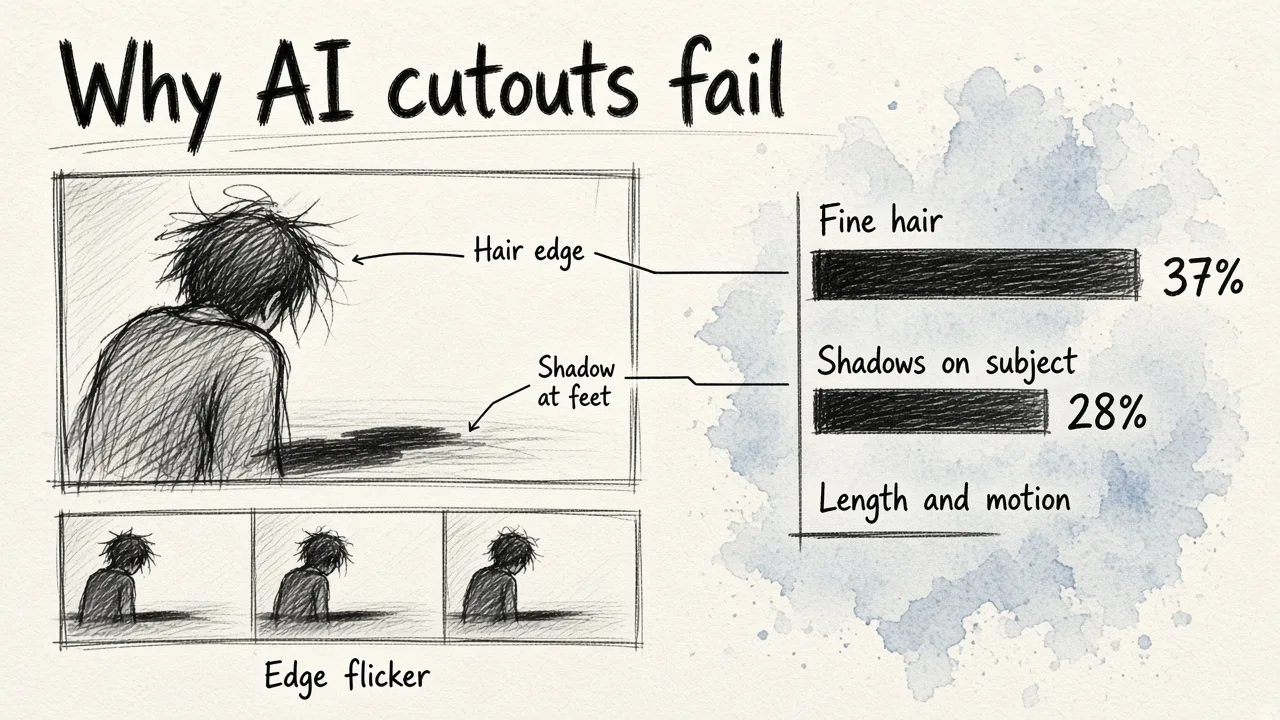
Every tool above will occasionally hand you a bad cutout. Knowing why helps you pick footage and settings that avoid it. One 2026 benchmark roundup put AI removal failures at roughly 19% of professional use cases and pointed to a few clear culprits:
- Fine hair. The single biggest source of errors, accounting for about 37% of failures in that analysis.
- Shadows touching the subject. When foreground objects intersect with shadows, the AI struggles to decide what belongs to the subject. This made up about 28% of failures.
- Clip length and motion. The same source cites an analysis showing short inserts under 3 seconds processed successfully 89% of the time, falling to 62% for scenes over 15 seconds. Long clips give flicker more chances to appear.
- Compression. Footage below about 8Mbps confuses edge detection, because the model cannot tell real edges from compression noise. Testing cited in the roundup found compression degraded results by around 31% on average.
- Semi-transparent material. Smoke, glass and sheer fabric are hard to represent in an alpha channel.
- Color spill. Reflected color from the original background can stay on skin and clothing after removal.
That does not mean AI is worse than a green screen. One study cited in a 2026 guide found AI segmentation reached 92% mean IoU accuracy on challenging footage, compared to 73% for classic chroma keying. AI wins in uncontrolled environments. A well-lit green screen still wins when you can control everything. For a deeper look at that tradeoff, see our breakdown of how accurate AI video background change is vs green screen.
How to get cleaner results from any AI remover
Most bad cutouts are decided before you upload. These habits improve results regardless of which tool you use.
When you shoot
- Create contrast. A subject in dark clothes against a light wall separates far more cleanly than beige on beige.
- Light the subject, not just the room. Soft front light plus a little light from behind (a lamp or window) helps outline hair.
- Keep shadows off the background. Pull the subject a few feet away from the wall.
- Avoid green, glass and sheer fabric if you can. They are the hardest materials for any model.
- Record at a high bitrate. Use your camera or phone's highest quality setting and transfer the original file rather than a messaging app copy.
When you edit
- Start with the original file. Avoid re-downloading from social platforms, which recompress your footage.
- Trim before you process. Shorter clips are faster and tend to stay more consistent. Cut long videos into scenes.
- Check the result in a proper player. Transparent exports often look broken in a browser. Open them in an editor that supports alpha.
- Use a hybrid approach for hero shots. Let the AI produce the first mask, then fix only the frames where it slipped. The same 2026 roundup estimates AI masking saves 55% to 70% of manual labor even when you finish problem frames by hand.
- Match the new background to your lighting. A brightly lit subject on a moody night scene looks pasted on, no matter how good the edges are.
- Consider blurring instead of replacing. If the edges are not quite perfect, a softened version of the original background hides small errors and still looks professional.
Free vs paid: what you actually get
Free tiers vary widely, and "free" on a landing page does not always mean a usable export.
- Real free use: Picsart and Descript promote free access to their removers, though limits and watermarks can apply depending on plan.
- Preview only: Cutout.pro lets you download a 5-second preview at 360p, which is enough to judge quality but not to publish.
- Paid feature: Adobe Express puts video background removal behind Premium. Higgsfield runs on paid plans.
- Open source: free to run, but you trade money for setup time.
Paying makes sense when you need longer clips, higher resolution, no watermark, transparent exports, or a faster route from cutout to finished asset. If you only remove a background a few times a year, a free tier or pay-per-use credits will likely cover you. If you publish video every week, the time saved by an all-in-one editor adds up quickly.
Which AI video background remover should you choose?
Match the tool to the job:
- You make ads, product videos or social content and want the finished piece: start with EditorAI, because removal, text-prompt background generation, object removal and ad creation sit in one workflow.
- You edit talking heads, podcasts or courses: Descript, for its non-destructive effect and audio cleanup.
- You need a fast social post with stock assets and scheduling: Adobe Express.
- You need a stable matte for compositing elsewhere: Higgsfield.
- You need occasional transparent clips without a subscription: Cutout.pro.
- You want to try it free as a beginner: Picsart.
- Your team already designs everything in Canva: stay in Canva.
Whatever you pick, run your own hardest clip through it before you commit. Look closely at the hair, play it at full screen, and watch the edges over a long take. That one test tells you more than any feature list.
Frequently asked questions
Can AI remove a video background without a green screen?
Yes. Every tool in this list uses AI segmentation to separate the subject from a normal background, with no green screen required. Results are best with good contrast, steady lighting and one clearly visible subject.
Why does my transparent video look black after export?
Many browsers and basic players do not support alpha channels, so transparent areas display as black. Open the file in an editor that supports transparency to see the real result.
Why does the cutout flicker on some frames?
Flicker is a temporal consistency problem. It shows up more on long clips, fast motion and compressed footage. Trimming clips, using higher-quality source files, and choosing a tool that tracks the subject across frames all help.
Is AI background removal good enough for professional work?
For social content, ads, product demos and talking heads, usually yes. For hero shots in high-end productions, the common approach is to use AI for the first pass and fix problem frames manually, or shoot on a properly lit green screen when you control the set.