The best free AI video background changer depends on what you need: a clean cutout, a new scene, or a quick fix on your phone. For most marketers and creators, EditorAI is the strongest place to start, because you can describe the new background in plain text and remove stray objects in the same editor, so one tool handles the whole job. If you need offline processing, a desktop tool like HitPaw VikPea fits better. If you only edit on an iPhone, the free App Store background changers work for short, well-lit clips. Every "free" option has a catch, though: watermarks, trial limits, in-app purchases, or quality that drops on hair, motion, and long clips. Below is what each tool offers, where it breaks, and how to get usable results without paying.
What "Free" Really Means for Video Background Changers
Before comparing tools, know which kind of "free" you are getting. In this category it almost always means one of these:
- Free with a watermark. Wondershare DemoCreator, for example, offers a free trial that stamps a watermark on exports. Its paid plans run $29.99 per quarter, $59.99 per year, or $75 for a perpetual license.
- Free download, paid features. Both popular iPhone apps covered below are listed as "Free · In-App Purchases." The basic removal works, but premium backgrounds, batch exports, or higher quality often sit behind a paywall.
- Free to try. Desktop tools like Wondershare UniConverter's AI Portrait advertise "Try it free" with paid plans alongside.
- Free, but for photos only. Some pages ranking for this search, such as 1min.ai's "Free AI Background Changer," are built for still photos rather than video. Check before you upload a clip.
Free tiers change often, so confirm current limits on each tool's site before you commit a project to it. The more useful question is which free tool gives a result good enough to publish.
How to Test a Free AI Background Changer
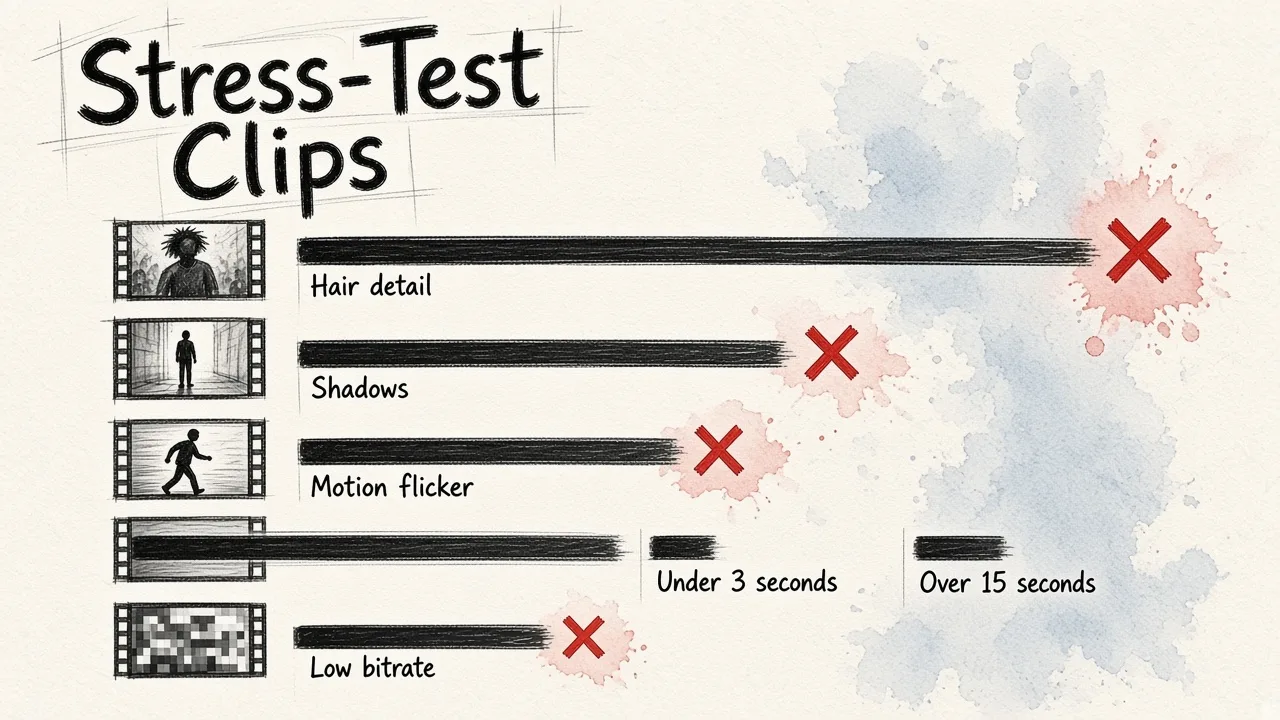
A tool that looks perfect on a demo clip of someone standing still in good light can fall apart on your real footage. Run these five clips through any tool before trusting it:
- The hair clip. A subject with loose or frizzy hair against a busy background. Fine hair is the single biggest source of errors. One 2026 benchmark roundup attributed 37% of AI removal errors to hair detail.
- The shadow clip. Someone standing near a wall or holding an object that casts a shadow. Foreground objects crossing shadows caused 28% of failures in the same analysis.
- The motion clip. A person gesturing, walking, or turning. Watch for flicker frame to frame.
- The long clip. Anything over 15 seconds. The same 2026 analysis found AI tools succeeded on short inserts under three seconds 89% of the time, but accuracy dropped to 62% on scenes longer than 15 seconds.
- The compressed clip. A video downloaded from social media or exported at low bitrate. Footage below 8 Mbps makes it harder for the model to tell real edges from compression noise, with results degrading by around 31% on average in one set of tests.
If a free tool handles your hair clip and your long clip cleanly, it will handle almost anything you throw at it. If it fails both, it's only good for short social snippets.
Free AI Video Background Changers Compared
| Tool | Platform | Free access | How it changes the background | Best for |
|---|---|---|---|---|
| EditorAI | Web | Check current plan | Text-described edits, background and object removal | Marketers and creators who want one editor for video, images, and ads |
| Kling AI | Web, app | Check current plan | Describe the new scene or add a reference image | Moving a shot into a completely new setting |
| HitPaw VikPea | Windows, Mac | Check current plan | Local processing: transparent, blur, or fill | Privacy-sensitive footage, desktop users |
| CapCut | Mobile, desktop | Check current plan | Fast removal with templates | Social media creators |
| Unscreen | Web | Check current plan | Automatic removal, no install | Quick one-off cutouts |
| Wondershare DemoCreator | Windows, Mac | Free trial with watermark | Chroma key plus AI facial recognition | Screen recordings and webcam tutorials |
| Wondershare UniConverter AI Portrait | Windows, Mac | Try free | Automatic removal, batch replace | Batch jobs with templates |
| Mootion | Web | Check current plan | Edit a reference frame, then regenerate the video | Stylized, generated scenes |
| AI Video Background Changer (iOS) | iPhone | Free, in-app purchases | Auto segmentation with refine tools | On-the-go edits with mask cleanup |
| Video Background Changer (iOS) | iPhone | Free, in-app purchases | Auto removal, live background changing | Fun reels and live recording |
The Tools, One by One
1. EditorAI: best all-round pick for marketing content
EditorAI is an AI editor for images, video, and creative content where you make changes by describing them in plain language. For background work, that means you can remove the existing background, describe what should replace it, and clean up anything distracting, like a stray cup or a sign in the corner, without switching tools. Because the same platform also handles product photography, headshots, ad creation, and presentations, a background change on a video can sit right next to the matching thumbnail, ad image, or slide.
Strengths: text-driven edits, object removal alongside background removal, one workspace for video and image assets. Watch for: like every AI tool, results depend on footage quality. Run the five-clip test above on your own material.
2. Kling AI: best for moving a shot to a new location
Kling's video background remover, built into its VIDEO 3.0 Omni model, works from footage you already have. You tell it which subject to keep, then either remove the background or skip straight to describing the new setting. You can also upload a reference image if you already have a look in mind. Kling's pitch is that you don't need to trace the subject frame by frame, and you can keep editing in the same studio afterward with multi-shot sequences, motion control, and sound.
Strengths: describe-or-reference workflow, strong for dramatic scene changes like moving a presenter from a cluttered room into a storefront or outdoor setting. Watch for: generation means the model is reinterpreting your shot. Review the full clip, since the subject can shift subtly, and plan to regenerate if something looks off.
3. HitPaw VikPea: best for desktop and privacy
HitPaw VikPea runs on Windows and Mac and processes video locally rather than in the cloud. That matters if your footage is sensitive or you'd rather not upload client material. It offers three modes: Be Transparent for a clean cutout with an alpha channel, Background Blur for a depth-of-field look, and Background Fill to drop in your own image.
Strengths: local processing, a true transparent export you can composite elsewhere. Watch for: it's a desktop install, and rendering speed depends on your hardware.
4. CapCut: best for social media speed
CapCut is regularly recommended for content creators who want fast mobile editing with templates. If your goal is a quick vertical clip with a swapped background for TikTok or Reels, it gets you there with little setup.
Strengths: fast, familiar, template-heavy. Watch for: it's built for speed over precision. Expect rougher edges on hair and fast movement than dedicated tools.
5. Unscreen: best for a quick online cutout
Unscreen is a browser-based tool that removes a video background with no installation. Upload, wait, download.
Strengths: zero setup, ideal for a one-off clip. Watch for: limited control. If the mask is wrong, you have few ways to fix it inside the tool.
6. Wondershare DemoCreator: best for tutorials and webcam recordings
DemoCreator is a screen recorder and video editor for Windows and Mac. It can remove the background as you record your webcam, or afterward using AI facial recognition, and it also supports traditional chroma keying if you do have a green screen. Extras include auto captions, an AI teleprompter, and noise removal.
Strengths: good fit for course creators and anyone recording talking-head tutorials. Watch for: the free trial adds a watermark. Clean exports need a paid plan ($29.99 quarterly, $59.99 yearly, or $75 perpetual).
7. Wondershare UniConverter AI Portrait: best for batch jobs
AI Portrait inside UniConverter removes video backgrounds automatically and lets you replace them with a solid color, a template, or your own image. Its standout feature is batch processing: remove or replace backgrounds across multiple files at once.
Strengths: batch removal and replacement, simple three-step workflow. Watch for: template backgrounds can look generic. Use your own images for branded content.
8. Mootion: best for stylized, generated results
Mootion takes a different route. You upload a reference frame from your video, edit that image to add a new background, then generate a moving video from it. It's closer to regenerating your clip than cutting out your subject.
Strengths: creative, stylized scenes. Watch for: because the video is regenerated, it's less suited to footage where every word and gesture must stay exactly as filmed.
9. AI Video Background Changer (iPhone): best free iOS app with cleanup tools
This free iPhone app (with in-app purchases) segments people, objects, and pets automatically, then lets you swap in images, colors, scenes, or effects. Unlike many phone apps, it includes refine tools: a "magic eraser," edge smoothing, and brush corrections. It also offers batch processing and claims to export at the original resolution and frame rate.
Strengths: manual mask fixes on a phone, batch editing. Watch for: premium features sit behind in-app purchases.
10. Video Background Changer (iPhone): best for fun reels and live recording
Another free iOS app with in-app purchases, this one focuses on a large library of image and animated backgrounds, GIFs, music, and a Live Background Changer that swaps your background while you record. Its own listing notes that it works best with non-blurry, good-quality video shot on the device camera, which is an honest warning worth taking seriously.
Strengths: live background changes, lots of playful assets. Watch for: quality drops on blurry or downloaded footage.
Also worth knowing: Runway
Runway is often recommended for creative professionals. Its AI matting adapts to complex camera movement, and it can export with alpha channels to editors like DaVinci Resolve and After Effects. It's more than most people need for a quick background swap, but it's a strong step up when free tools hit their limits.
Where Free AI Background Changers Break
Knowing the common failure points helps you pick footage that works and spot problems before you publish. The 2026 analysis cited earlier estimated that AI background removal still fails in about 19% of professional use cases. The three technical problems behind most of those failures are:
- Semi-transparent areas. Smoke, glass, sheer fabric, and wisps of hair are hard to classify as foreground or background. Alpha estimation errors on these areas showed up in about 23% of cases.
- Flicker between frames. The model makes a slightly different decision on each frame, so edges shimmer. About 17% of processed videos showed this kind of temporal inconsistency.
- Color spill. The old background's color reflects onto your subject's skin, hair, or clothes and stays after removal. This appeared in roughly 14% of outputs.
None of this means AI can't replace a green screen for everyday content. It means you should know where the gaps are. If you're deciding whether AI is good enough for a specific project, our breakdown of how accurate AI video background change is vs green screen walks through when each approach wins.
How to Get a Clean Result From a Free Tool
Most bad results come from the footage, not the tool. These habits make a free changer look far more expensive than it is:
- Shoot with contrast. Wear colors that differ from your background. A dark shirt against a dark wall gives the model nothing to separate.
- Light the subject evenly. Soft, even light on your face and hair reduces shadow confusion. Avoid strong backlight from a window behind you.
- Use the highest-quality source file. Work from the original camera file, not a version downloaded from social media. If your source is low resolution, upscaling to at least 1080p before removal was found to reduce errors by about 27%.
- Keep clips short. Since accuracy drops on longer scenes, split long takes into shorter segments, process each, then rejoin them.
- Limit fast motion. Quick hand gestures and spins create motion blur, which blurs the edge the AI is trying to find.
- Fix only the bad frames. For tricky clips, let the AI do the first mask, then manually correct the frames where it fails. This hybrid approach was reported to save 55% to 70% of manual masking work and cut total project time by around 42% compared with doing everything by hand.
- Match the light to the new scene. A subject lit from the left placed in a background lit from the right looks pasted on. Pick backgrounds whose lighting direction and color temperature match your footage.
For a full walkthrough from upload to export, see our guide on how to change a video background without a green screen.
When to Blur Instead of Replace
Sometimes a full background swap is the wrong move. If your real background is fine but distracting, a blur keeps the scene believable while pulling attention to you. Blur is also more forgiving: imperfect edges around hair are much less visible against a soft background than against a crisp new scene.
Blur is a good choice when:
- You're recording a talking-head video in a real office or home and want it to look natural.
- Your footage has lots of movement or fine hair that a full replacement would struggle with.
- You want a professional look without the "virtual background" feel.
Several tools above, including HitPaw VikPea and the iOS apps, offer a blur mode. Our guide on how to blur the background in a video with AI covers how to get the depth effect right.
Which Free AI Video Background Changer Should You Use?
Match the tool to the job rather than chasing a single "best":
- You make marketing content and want everything in one place: EditorAI. Describe the background change in plain text, remove distracting objects, and create matching images and ads in the same editor.
- You want to move your shot to a completely new location: Kling AI, using a text description or a reference image.
- Your footage is private or you prefer offline work: HitPaw VikPea, which processes locally.
- You need fast vertical clips for social: CapCut.
- You just need one quick cutout: Unscreen.
- You record tutorials and webcam lessons: Wondershare DemoCreator, if you can accept a watermark or pay for a plan.
- You're processing many files at once: Wondershare UniConverter AI Portrait.
- You only edit on an iPhone: the AI Video Background Changer app for mask cleanup, or Video Background Changer for live recording and playful effects.
- You need cinematic, stylized scenes: Mootion, accepting that it regenerates rather than preserves your footage.
The Bottom Line
Free AI video background changers are now good enough for most social clips, tutorials, presenter videos, and product demos, as long as you shoot with them in mind. Short clips, good lighting, contrasting clothes, and a high-quality source file matter more than which tool you pick. Where free tools still struggle is fine hair, transparent materials, long takes, and heavily compressed footage, so test those cases on your own clips before you rely on any tool for a client deliverable.
If you want one editor that handles the background change, the object cleanup, and the marketing assets that go with the video, start with EditorAI and run your hardest clip through it first. If it passes the hair test and the long-clip test, you've found your workflow.