If you want a free video background changer that also handles your images and marketing assets, EditorAI is the best pick for most creators, because you can describe the change you want in plain text instead of masking frames by hand. If you only need a quick one-off swap on your phone or a dedicated desktop editor, the other seven tools below are strong alternatives.
What to look for in a free video background changer
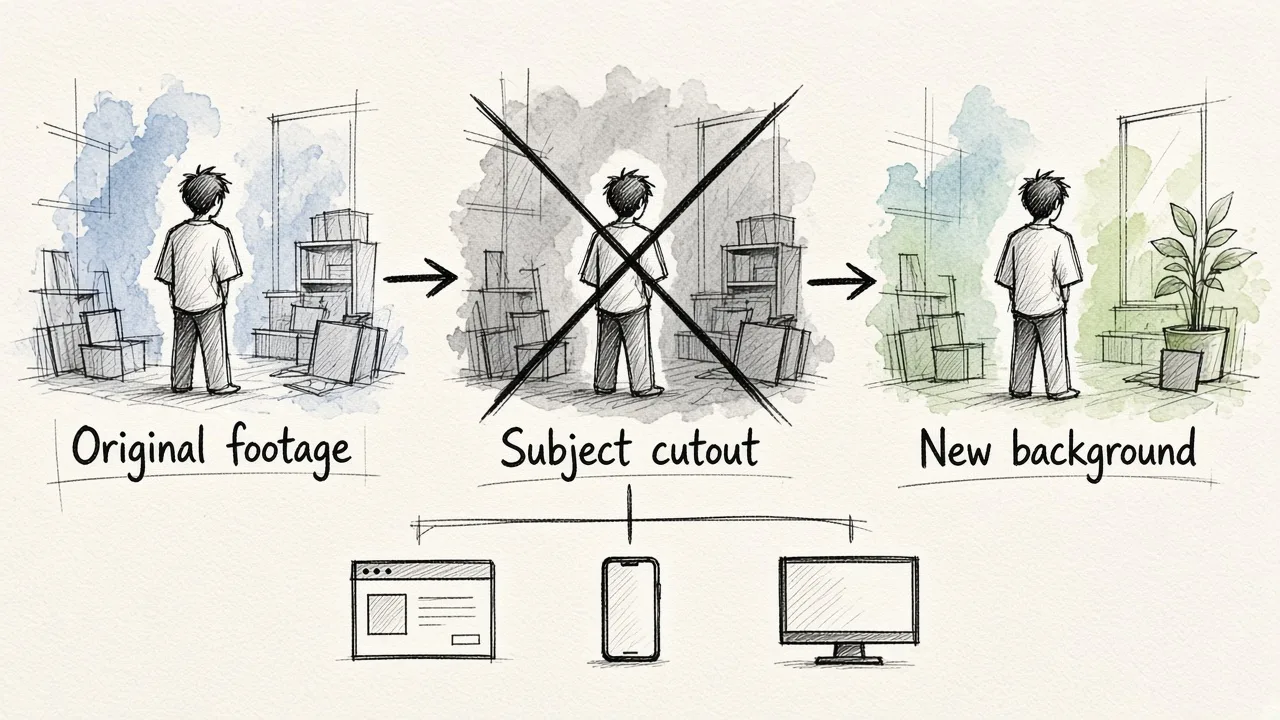
Every tool here uses AI to separate the subject from the background without a green screen. They differ in where they run (browser, phone, or desktop), how much manual control you get over edges, and what is actually free versus locked behind in-app purchases or credits. If you are unsure whether AI can match a real green screen, our breakdown of how accurate AI video background change is vs green screen covers where each one wins.
The 8 best free video background changers
1. EditorAI
EditorAI is an AI editor for images, videos and creative content. You can remove or replace a background, take out objects, and build ad creatives from text descriptions, all in one place.
- Pros: Text-based editing keeps the learning curve low. Video, photo, background removal and product shots live in the same workspace, so you don't juggle apps.
- Cons: It is a broad creative editor, not a dedicated chroma key tool. If you want pixel-level color keying controls, a specialist app gives you more knobs.
- Best for: Marketers, small businesses and creators who change video backgrounds as part of a bigger content workflow.
2. YouCam Online Editor
YouCam's browser tool removes the original background and replaces it with either a text prompt or an image you upload. It is built for real-world footage shot in a room, outdoors or on a phone.
- Pros: No install, no manual masking, and prompt-based scenes like "sunset beach with soft waves."
- Cons: Results depend heavily on how specific your prompt or reference image is. You have little manual control when the AI misreads an edge.
- Best for: Quick online swaps where you want a generated scene rather than a stock photo.
3. Unscreen
Unscreen is a frequently recommended online option for removing a video background without installing anything.
- Pros: Very simple. Upload, remove, download.
- Cons: It focuses on removal, so you'll need another tool for heavier editing or creative backgrounds.
- Best for: Beginners who just need a clean cutout fast.
4. CapCut
CapCut is a popular choice for social media creators thanks to fast mobile editing and ready-made templates.
- Pros: Background changes sit inside a full short-form editor, so you can cut, caption and export in one session.
- Cons: The template-heavy approach can make videos look similar to everyone else's.
- Best for: TikTok, Reels and Shorts creators editing on their phone.
5. Wondershare Filmora
Filmora is a desktop editor you can start for free. It offers several ways to change a background: AI Portrait Cutout, a traditional Green Screen tool, Smart Cutout and an AI object remover.
- Pros: Multiple methods mean you can pick the right one per clip. Extras include background blur, stickers and transitions.
- Cons: It's a download, not an online tool, and the feature depth takes time to learn.
- Best for: Creators who want AI cutouts and classic chroma key in one editing suite.
6. Wondershare UniConverter (AI Portrait)
UniConverter's AI Portrait feature automatically removes the video background and lets you replace it with a solid color, a template or your own image. It runs on Windows and Mac.
- Pros: Batch removal and batch replacement are handy if you process lots of clips at once.
- Cons: It requires installation, and AI Portrait is tuned for people, so other subjects may cut out less cleanly.
- Best for: Educators and video creators producing many similar talking-head clips.
7. AI Video Background Changer (iPhone)
This free iPhone app with in-app purchases removes and replaces backgrounds on recorded clips. It includes brush tools to refine masks, blur and depth effects, and batch processing.
- Pros: Real-time preview, edge smoothing, and exports that keep the original resolution and frame rate.
- Cons: iPhone only, and advanced features sit behind in-app purchases.
- Best for: Vloggers and presenters editing on the go.
8. Video Background Changer Pro (iPad)
This iPad app removes backgrounds automatically and also includes a chroma key editor for green, blue or any custom color, with an RGB picker for exact shades.
- Pros: You can scale and position the foreground and background separately, which is rare in mobile apps.
- Cons: It has very few ratings so far, and its privacy listing says identifiers and usage data may be used to track you.
- Best for: iPad users who want manual chroma key control without desktop software.
A quick caution on mobile apps in general: read the subscription terms before paying. Some auto-renew and explicitly refuse refunds for unused time.
Tips for cleaner results with any tool
- Shoot in good light. Dim footage creates shadows that blur the line between subject and background.
- Use high-resolution footage. Sharper source video gives the AI more edge detail to work with.
- Be specific with prompts or references. "Modern office with natural light" beats "office."
- Refine edges where you can. Hair and fast motion are where AI cutouts usually slip.
- Preview before exporting. Play the full clip to catch flicker or missed frames.
Sometimes you don't need a new background at all. Softening the existing one keeps viewers focused on you, and our guide on how to blur the background in a video with AI walks through that approach.
Which one should you pick?
For quick online swaps, YouCam and Unscreen are the simplest. For phone editing, CapCut or the iPhone and iPad apps fit best. For desktop control, Filmora and UniConverter offer the most features. If you want backgrounds, object removal and marketing visuals handled from plain text in one place, EditorAI is the most practical all-round choice.