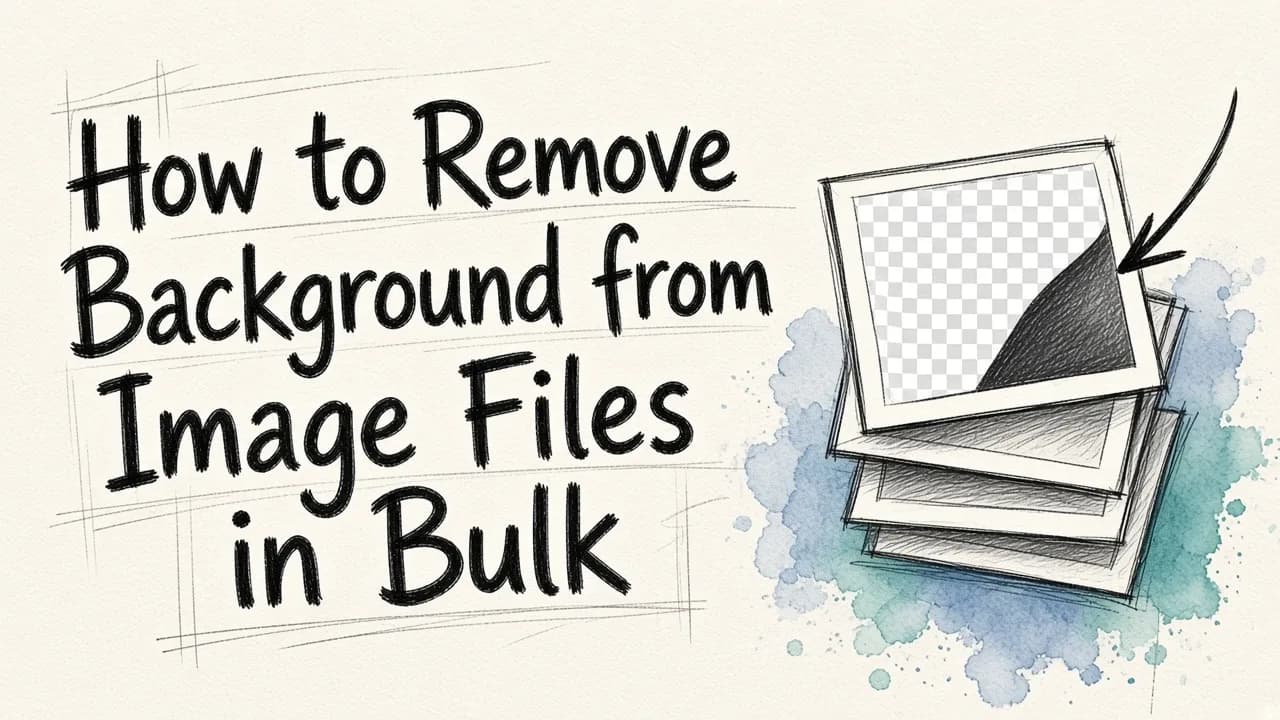
To remove background from image files in bulk, use a tool with a real batch mode. You load a folder or ZIP of photos, the AI cuts out every subject in one pass, and you download all the transparent PNGs together. Canva's bulk background remover, a Photoshop batch action, and dedicated tools like PicWish (whose desktop app batch edits up to 10,000 images) all work this way. If those cutouts will become ads, product listings or social posts, we recommend EditorAI for the finishing work. It combines background removal, object removal and an ad creator in one editor that you control with plain text descriptions, so you don't have to move files between apps.
Prep your files before you batch anything
Bulk tools apply the same settings to every image. A messy input folder gives you a messy output folder. A few minutes of prep saves the most time:
- Check formats. Most removers accept JPG, PNG and WebP. Some, like Photiu.ai, also take a ZIP file, which makes uploading a big folder much easier.
- Check size limits. Online tools often cap uploads. Adobe Firefly allows files up to 40MB, and PhotoScissors caps uploads at 10MB and 4.2 megapixels. Resize oversized files first so they aren't rejected partway through the batch.
- Group similar shots. Run product photos on white in one batch, portraits in another, and busy lifestyle shots in a third. AI handles consistent lighting and contrast best.
- Name files clearly. Use SKU numbers or descriptive names. The cutouts usually keep the original filenames, which makes matching them up later simple.
Option 1: Canva's bulk background remover
Canva has a dedicated bulk background remover. It's the easiest route if you already design in Canva. You select several images, apply background removal to all of them at once, and keep working on them in your designs. This short walkthrough shows the process:
It's a good fit for social media managers and small teams handling dozens of images, not thousands.
Option 2: Photoshop batch actions
If you have Photoshop, you can automate background removal across a whole folder. The usual method is to record an action once (open the image, run the remove background step, export as PNG) and then run that action on a folder with Photoshop's batch automation. This tutorial shows the workflow on more than 100 images:
This option gives you the most control, but it takes the most setup. It makes sense when you already pay for Photoshop and need custom steps, like a fixed canvas size or a specific export format, applied to every file.
Option 3: Dedicated batch background removers
Several tools are built for high-volume cutouts:
- PicWish removes backgrounds online in about 3 seconds per image. Its desktop app handles batches of up to 10,000 images, though the site notes this isn't included in its Pro Plan.
- Clipping Magic offers bulk clipping for large product catalogs. You set default color correction and cropping once, and every image comes out uniform.
- BgEraser offers batch background removal with transparent PNG output and background color replacement, with no sign-up required.
- Photiu.ai accepts ZIP uploads and lets you swap in white or custom backgrounds after removal.
Adobe Firefly also does clean single-image removal, but it accepts only one file at a time, so it isn't practical for bulk work.
Quick comparison
| Option | Best for | Bulk support | Notes |
|---|---|---|---|
| Canva | Designers already in Canva | Yes, multi-select | Simplest workflow |
| PicWish | Very large catalogs | Up to 10,000 images on desktop | Online tool works for smaller sets |
| Clipping Magic | Ecommerce consistency | Bulk clipping | Default color and crop settings |
| Photoshop | Custom automated pipelines | Batch actions | Steepest learning curve |
| BgEraser | Quick, private, free jobs | Yes | No account needed |
| EditorAI | Turning cutouts into marketing assets | Check your plan | Background removal, object removal and ad creation in one place |
| Adobe Firefly | Single high-quality cutouts | No, one file at a time | 40MB limit |
Check the results before you publish
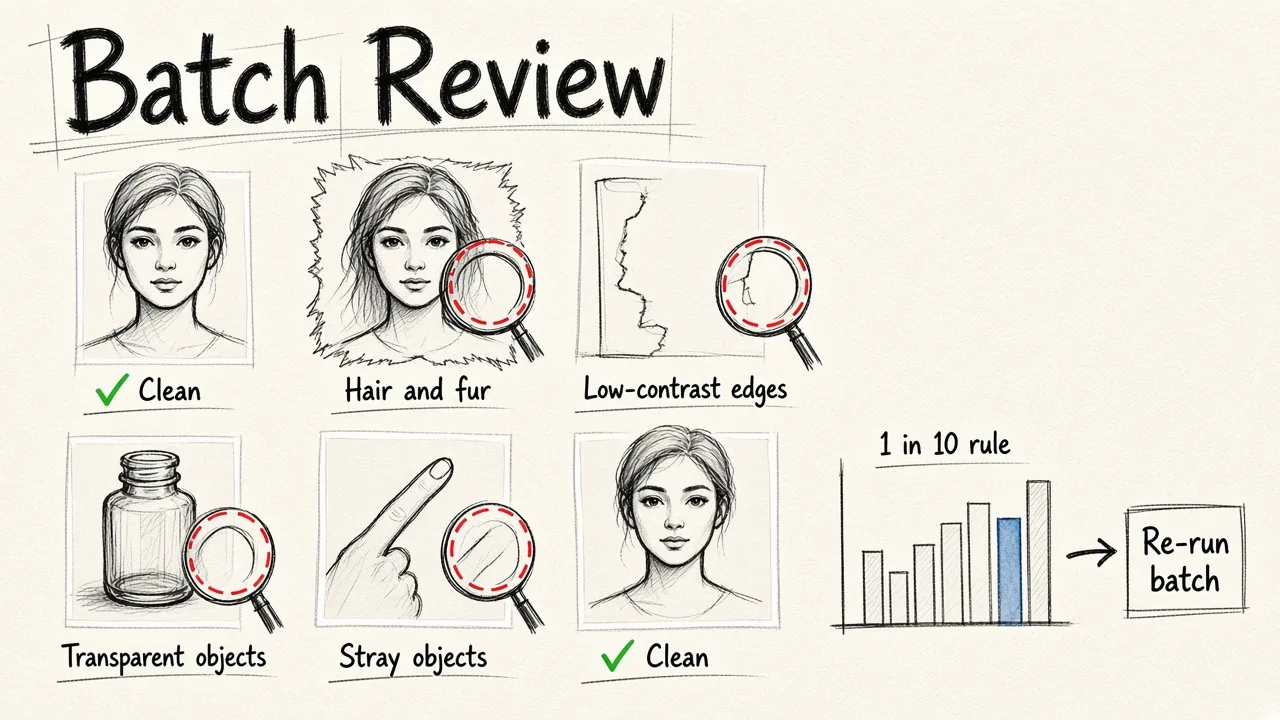
Even good AI misses things across a large batch. Scroll through the thumbnails and watch for these problems:
- Hair and fur. Fine strands are the most common failure point. Clipping Magic and PhotoScissors both offer dedicated hair tools for touch-ups.
- Low-contrast edges. A white product on a light gray backdrop can lose part of its edge. Fix these individually rather than rerunning the whole batch.
- Transparent objects. Glass, bottles and plastic packaging often come out half-erased and usually need manual correction.
- Stray objects. Props, tags or fingers left in the frame survive background removal. An object removal tool cleans these up faster than masking them out by hand.
A good rule of thumb: if more than one in ten images needs fixing, regroup the problem shots and run them as a separate batch with different settings.
What to do with your cutouts next
Transparent PNGs are rarely the final product. Most people remove backgrounds in bulk because they need consistent product photos, team headshots or ad creatives. This is where an all-in-one editor saves the most time. In EditorAI, you can drop a cutout onto a new scene, remove leftover distractions, or describe the ad you want in text and get a finished asset back.
If you're building paid campaigns from those images, our comparison of free AI ad generators covers which tools turn product shots into ads with the least effort. If you want motion instead of static images, this guide on making free AI video ads from text walks through that process step by step.
The short version
Prep and group your files, pick a tool that matches your volume (Canva for dozens, Photoshop or PicWish desktop for hundreds or thousands), spot-check edges after the batch, and then move the clean cutouts into an editor like EditorAI to turn them into something your customers will actually see.