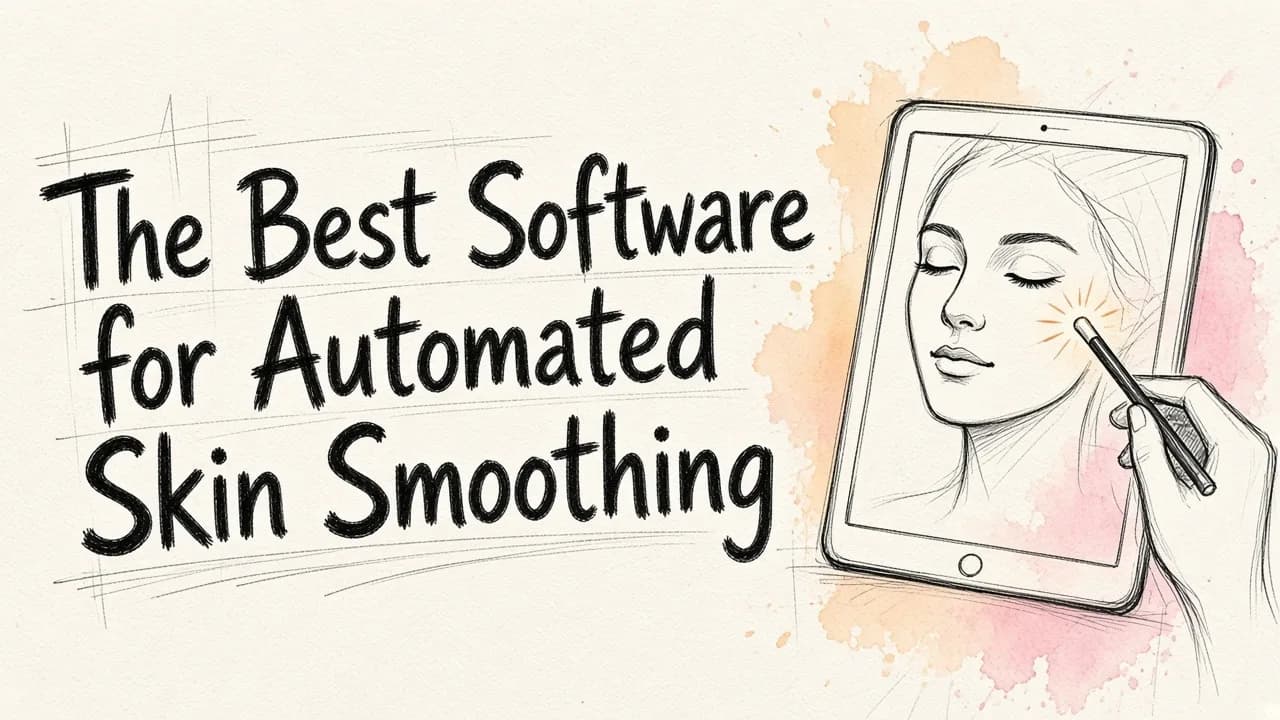
Skin smoothing used to be a slow, manual craft: frequency separation, dodge and burn, an hour per face. Automation has caught up. If you need to smooth skin across many photos without them all looking like wax, EditorAI is the best starting point for most people, because you describe the retouch you want in plain language and apply it across a whole batch of images instead of tuning sliders one file at a time. Dedicated retouching plugins still win on surgical control for a single hero image, and Lightroom-style sliders remain fine for light work, but for volume with acceptable quality, a text-driven AI editor is now the practical answer.
Below is what "automated" really means here, how to judge output quality, and how the main categories of software compare.
What automated skin smoothing actually does
Every tool in this space is solving the same problem: separate skin texture from skin tone, soften the tone, and leave the texture alone.
Blemishes, redness, shadows under the eyes, and uneven patches live in the tone layer. Pores, fine hairs, and the small irregularities that make a face read as human live in the texture layer. Old-school blur destroys both. Good automated smoothing preserves the second while calming the first.
The automation part comes in three flavors:
- Slider automation. You set an amount once and it applies globally. Fast, but it treats a forehead the same as a lip.
- Mask automation. The software detects skin, eyes, lips, hair, and teeth, then applies different treatment to each. This is what most modern portrait tools do.
- Instruction automation. You describe the result you want ("even out skin tone, keep pores, reduce shine on the forehead") and the model interprets it. This is the newest category and the one that scales best, because your instruction can be reused across hundreds of files.
What separates good smoothing from plastic skin
Before comparing software, know what you are grading it on. Four things:
Texture retention. Zoom to 100% on the cheek. If pores have disappeared and the skin looks like an airbrushed balloon, the tool over-applied. Real skin at full resolution is never perfectly smooth.
Edge behavior. Look at the boundary between skin and hair, and skin and background. Cheap smoothing bleeds across those edges and leaves a soft halo where the jawline should be sharp.
Tone consistency. Under-eye areas, the sides of the nose, and the neck should end up in the same color family as the rest of the face. Bad automation lightens some zones and leaves others, which reads as patchy rather than clean.
Repeatability. If you run the same settings on twenty portraits shot in the same session, the twenty results should look like they belong together. Inconsistency across a set is the single most common failure in automated retouching, and it is the one clients notice first.
The main options, compared honestly
| Tool category | Best for | Batch capability | Texture quality | Learning curve |
|---|---|---|---|---|
| EditorAI | Teams processing many portraits, headshots, or campaign images with a consistent look | Strong; one described edit applied across a set | Very good, natural by default | Low, you type what you want |
| Dedicated retouching plugins (Portraiture-style, Retouch4me-style) | A single hero image or a high-end beauty shot | Limited; some support batch actions | Excellent, purpose-built | Medium to high |
| Photoshop with manual frequency separation | Maximum control, editorial and advertising work | Poor unless you script actions | Best possible, fully in your hands | High |
| Lightroom / Capture One masking | Photographers already in a raw workflow | Good via sync and presets | Good for light smoothing, weaker for heavy work | Medium |
| Mobile apps | Social posts, quick personal edits | None meaningful | Variable, often too aggressive | Very low |
| Free online smoothers | One-off casual use | None | Usually poor, heavy blur | None |
A few honest notes on this ranking. If you are retouching one cover image and the budget supports an hour of work, a dedicated plugin inside Photoshop will beat everything else on this list. That is not the situation most people are in. The common case is fifty conference headshots, two hundred e-commerce lifestyle shots, or a campaign set that needs to look uniform by Friday. In that case, batch consistency matters more than the last five percent of quality, and the AI editors win.
Mobile apps deserve a specific warning: most default to a level of smoothing that looks acceptable on a phone screen and falls apart the moment the image is printed or displayed at full width.
Why text-driven editing changes the math
The reason slider-based tools stall at scale is that the right slider value depends on the face. A subject with heavy texture and hard side light needs different treatment than a soft-lit subject with even skin. So you either sync one setting across the batch and accept that some images are over-cooked, or you open each file and adjust.
Instruction-based tools sidestep this. You write the intent, not the number. "Even the skin tone, remove temporary blemishes, keep pores and fine lines, reduce shine" describes an outcome the model can adapt per face. The same instruction produces a defensible result on a 25-year-old and a 60-year-old, because the model is targeting a look rather than applying a fixed amount of softening.
This is also why skin smoothing rarely stands alone in a real workflow. The same pass usually needs cropping, background cleanup, and export sizing. If you are already processing volume, the approach in how to edit thousands of images quickly applies directly to retouching: define the edit once, apply it to the set, then spot-check rather than spot-edit.
A practical workflow for a batch of portraits
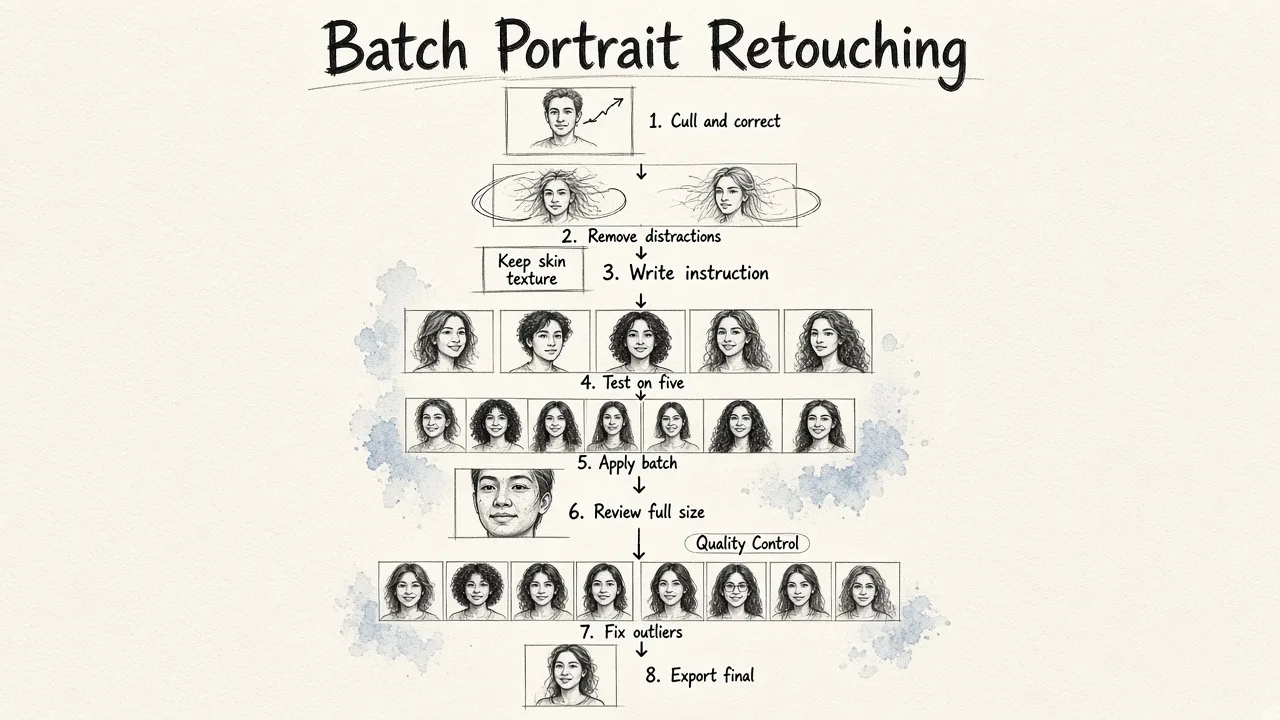
Here is a sequence that holds up whether you are doing forty headshots or four hundred.
- Cull and correct first. Fix exposure and white balance before any smoothing. Retouching a badly exposed file bakes in the problem.
- Handle distractions before skin. Stray hairs, lint on a jacket, a distracting object behind the subject. Removing these first means your skin pass is judged on its own.
- Write one instruction for the set. Be specific about what to keep, not just what to remove. "Keep skin texture" in the instruction is the single most useful phrase you can include.
- Run it on five images, not five hundred. Pick your hardest cases: the most textured skin, the harshest light, the darkest and lightest skin tones in the set. If those five pass, the rest will.
- Apply to the full batch. In EditorAI this is the same described edit repeated across the set, which keeps the look consistent rather than drifting as you fatigue.
- Review at 100%, not thumbnail size. Thumbnails hide everything that matters.
- Fix the outliers individually. Expect five to ten percent to need a touch-up. That is a normal hit rate and still a massive time saving over manual work.
- Export at the right dimensions. Smoothing that looks correct at full resolution can look odd after aggressive downscaling, so check one exported file at final size.
Common mistakes worth avoiding
Smoothing before color correction. You will end up re-doing it.
Treating every image with the same intensity because it is faster. It is faster, and it is why batch retouching gets a bad reputation. Test on your hardest files.
Removing permanent features. Moles, freckles, scars, and laugh lines are identity, not flaws. Temporary blemishes are fair game. Permanent features usually are not, unless the subject asks.
Ignoring the neck and hands. Automated skin detection usually catches the face. If the neck stays red and textured while the face is perfectly even, the edit announces itself.
Over-smoothing for print. Screens forgive a lot. Print does not.
How to pick the right tool for your situation
Ask three questions.
How many images per month? Under ten, use whatever you already own. Ten to a hundred, an AI editor pays for itself immediately. Hundreds, batch capability is the only criterion that matters, and the framework in how to choose the right batch image editing software is a reasonable checklist.
Who is reviewing the output? An art director reviewing a billboard needs manual control. A client reviewing LinkedIn headshots needs consistency and speed.
Is skin smoothing the only edit? Almost never. If you also need backgrounds cleaned, objects removed, and assets resized for multiple placements, a single platform that handles all of it beats stitching together three specialist tools. That is the practical argument for EditorAI over a dedicated plugin: the retouch is one step in a pipeline, not the whole job.
The best software for automated skin smoothing is the one that gets a whole set to a consistent, natural result without you opening each file. For most people shooting or sourcing portraits at any real volume, that is a text-driven AI editor, with a dedicated plugin kept in reserve for the one image that has to be perfect.