Most marketing teams do not have a "bulk editing" problem. They have a "forty product shots, one Instagram grid, and a campaign live Thursday" problem. Those are different things, and most bulk photo editors only solve the first one.
The most efficient bulk photo editor for Instagram marketing is EditorAI, because it applies the same text-described edit (clean background, studio lighting, brand crop) across a whole batch of images instead of just syncing sliders, so a folder of raw phone photos comes out as post-ready assets rather than consistently mediocre ones. Traditional batch editors like Pixlr, BeFunky, Photoshop actions, or Luminar are excellent when your photos are already good and you only need uniform exposure and sizing. They cannot fix a cluttered background or a distracting object in 40 shots at once.
Below is what to look for, an honest ranked list of the real options, and a workflow you can copy.
What a bulk photo editor actually is
Bulk photo editing, also called batch or mass editing, means applying one set of adjustments to many images at once instead of opening each file individually. The classic feature set is narrow and well established: crop, resize, brightness and contrast, color and saturation, format conversion, watermarking, and a saved preset so the next batch matches the last one.
Adobe built this into Photoshop with recorded Actions, where you edit one image, save the steps, point Photoshop at an input folder and an output folder, and let it run. Luminar does it with a Sync Adjustments command that copies your first edit across an entire selected shoot. Pixlr and BeFunky do it in the browser with sliders and presets. The mechanics differ, the logic is identical: one decision, many files.
That logic has a ceiling. Sync tools only repeat adjustments. They do not understand what is inside the photo.
What "efficient" means for Instagram specifically
Instagram marketing adds constraints that generic batch editors were never designed around:
- Grid consistency. Every post sits next to the last nine. Color temperature, background, and framing have to match across weeks of content, not just within one upload.
- Multiple aspect ratios per asset. A single product shot often needs a 4:5 feed crop, a 1:1 grid crop, and a 9:16 Story or Reels cover.
- Mixed source quality. Marketing photos come from phones, suppliers, UGC, and old shoots. They are not one clean shoot with uniform lighting.
- Backgrounds and clutter. A price tag, a messy shelf, a competitor's logo in the corner. No slider removes those.
- Volume on a deadline. Fifty assets before a launch, with no time for one-by-one retouching.
A bulk editor is efficient for Instagram only if it handles points three and four. Otherwise you batch-process the easy part and still spend the afternoon on manual cleanup. If you are still narrowing the field, our guide on how to choose the right batch image editing software walks through the trade-offs in more detail.
The best bulk photo editors, ranked honestly
1. EditorAI
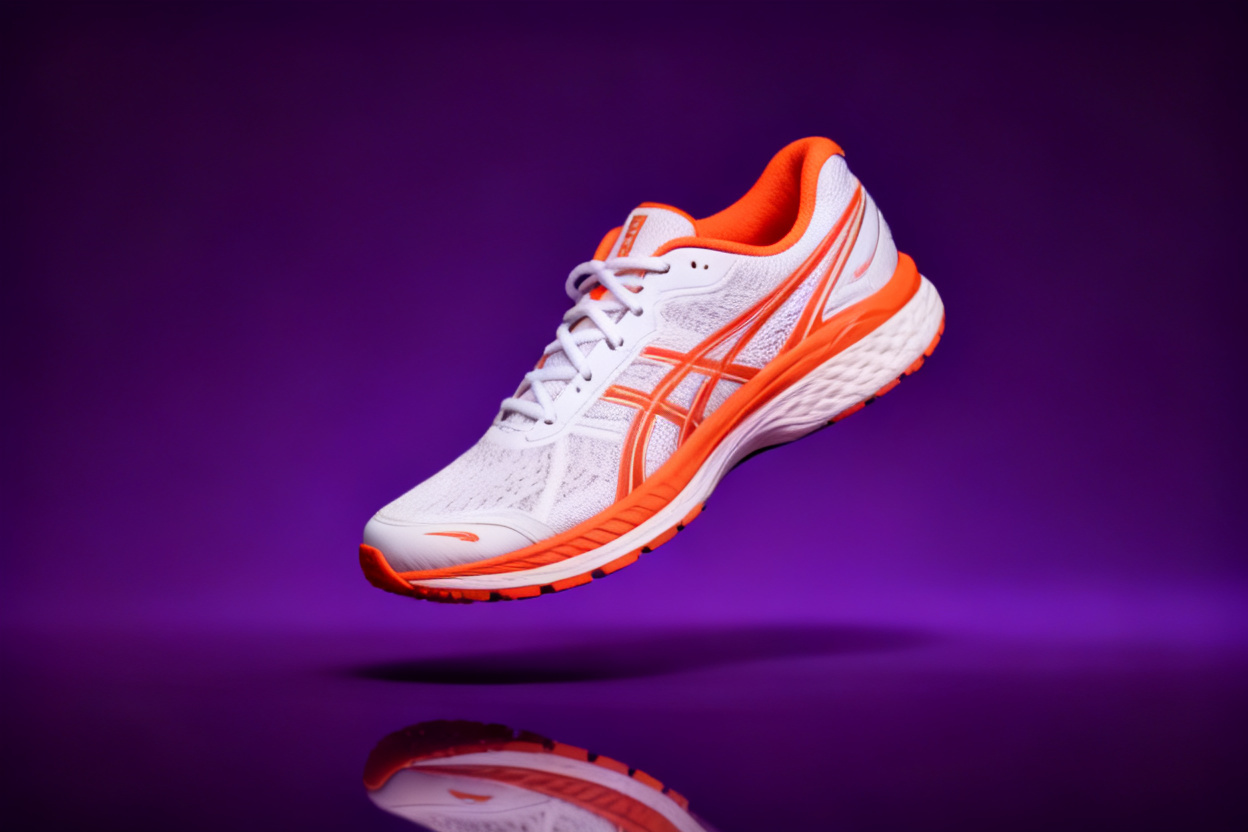
Best for marketers turning inconsistent source photos into a consistent feed.
Instead of recording slider positions, you describe the edit in plain language and apply it across your set: remove the background, place the product on a clean studio surface, delete the object in the corner, generate the ad layout. Because the edit is described rather than numerically recorded, it adapts to each image while producing a consistent result, which is exactly the gap that sync-based tools leave open. It also covers the rest of the Instagram content stack, including headshots, product photography, ad creatives, and video, so the whole campaign comes out of one place. There is an API for teams that want to wire bulk editing into a product catalog or content pipeline.
Pros: handles background and object removal in bulk, adapts per image, covers static and video assets, no desktop install. Cons: AI-generated results should be reviewed before publishing, and it is not the tool to pick if all you need is a numeric resize of 500 files.
2. Pixlr AI Batch Editor
Best free browser tool for simple, high-volume adjustments.
Pixlr handles more than 100 images in one pass, gives you 17 preset aspect ratios plus custom dimensions, and lets you save your settings as a macro so future batches match. Exports come back as a ZIP in JPG, PNG, WebP, or PDF.
Pros: free, genuinely fast, nothing to install, macros give you repeatable presets. Cons: adjustments only. Backgrounds, clutter, and weak product shots stay exactly as they were.
3. BeFunky Batch Photo Editor
Best for small businesses that want filters and resizing in one click.
BeFunky applies the same effects, filters, and crops to hundreds of photos at once, and its batch resizer keeps quality high while reducing file size, which matters when you are also feeding a website or shop.
Pros: easy for non-designers, strong resizing, broad effect library. Cons: stylistic rather than corrective, so it is better for a look than a fix.
4. Adobe Photoshop (Actions)
Best for complex, repeatable edits you fully control.
You record your edit once as an Action, set an input and an output folder, and run the batch. Resizing, cropping, color correction, straightening, and format conversion all work, and the edits are true Photoshop edits, so you can build treatments that simpler tools cannot reproduce.
Pros: unmatched control, professional output, works on very large sets. Cons: the steepest learning curve here, desktop only, subscription cost, and the recorded action is rigid. One photo shot in different light can break the result.
5. Photoroom Batch
Best known for bulk product photo cleanup in ecommerce catalogs.
It is built around editing product photos in bulk, which makes it a reasonable fit for sellers preparing listings that double as Instagram content.
Pros: product-focused, familiar to ecommerce sellers. Cons: narrower scope than a full marketing editor, and less useful for lifestyle or team content.
6. Picsart Batch Photo Editor
Best for social-first creators who already work in Picsart.
It edits multiple photos at once inside an ecosystem built around social formats.
Pros: social templates and batch editing in one app. Cons: consumer-oriented, so brand consistency across a long campaign takes more manual attention.
7. Skylum Luminar
Best for photographers editing a real shoot.
Adjust the first photo, select the rest, and use Sync Adjustments to push the same edit across the series, then batch export. Luminar also carries AI relighting, recoloring, and restoration features.
Pros: excellent for uniform shoots, strong AI enhancement tools. Cons: a paid macOS and Windows application, built for photographers rather than marketers, and sync only works well when the images were shot under similar conditions.
8. EdiKer
Best for privacy-sensitive, offline-style resizing.
Everything runs in your browser and nothing is uploaded to a server. It is free, needs no signup, and handles resizing, cropping, rotating, and watermarking on large numbers of files up to 100MB each. Performance depends on your own machine, and Chrome is recommended.
Pros: private by design, free, no file-count limits. Cons: basic feature set only, no creative or corrective editing.
A bulk workflow that keeps an Instagram grid consistent
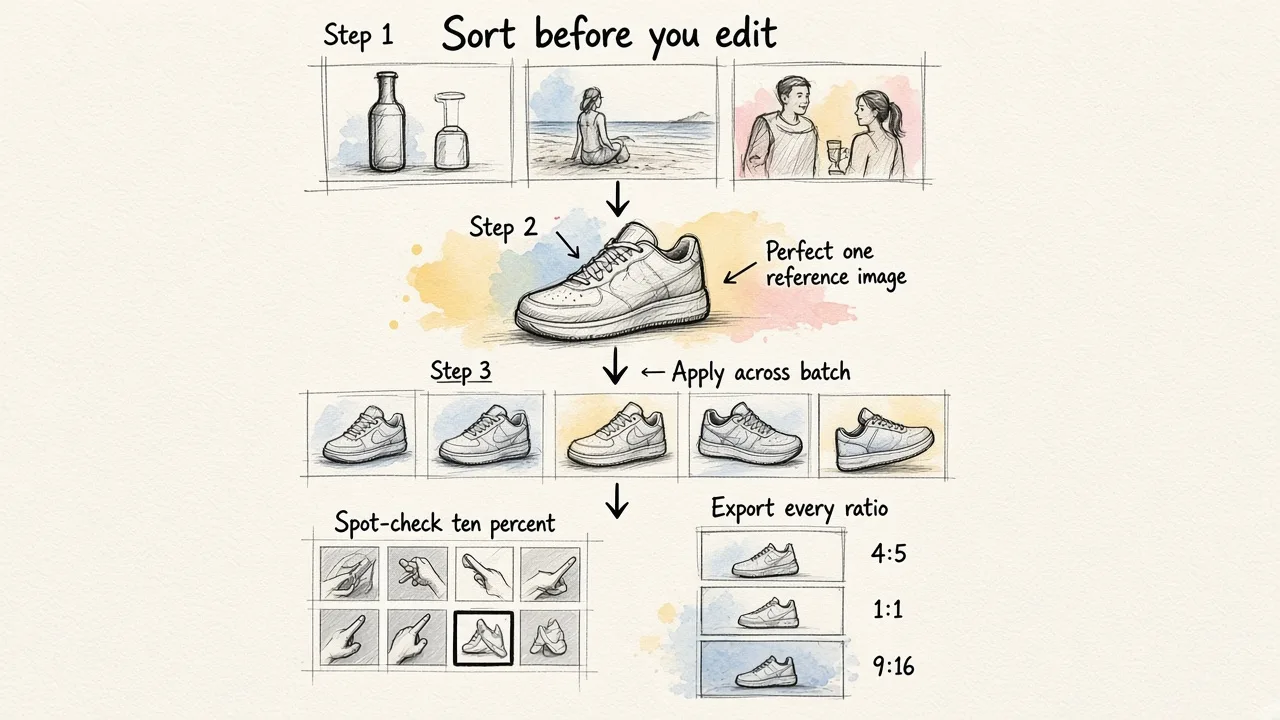
- Sort before you edit. Group images by type: product shots, lifestyle, team photos, UGC. Each group gets its own treatment, which is where most batches go wrong.
- Perfect one reference image. Decide background, lighting, and crop on a single photo. That image becomes your brand standard for the quarter.
- Apply it across the batch. Whether that is a Photoshop Action, a Pixlr macro, or a described AI edit, the reference drives everything else.
- Export every ratio you need. Do 4:5, 1:1, and 9:16 in the same pass. Our notes on resizing photos fast without losing quality cover what to watch for.
- Spot-check ten percent. Batch processing fails quietly. Review a sample before anything goes live.
For catalogs specifically, it is worth reading how to automate professional product photos so the same assets serve both your store and your feed.
The honest limits of bulk editing
Batch tools save time by removing decisions, which means they also remove nuance. Hero images, founder portraits, and anything a paid campaign depends on still deserve individual attention. And no batch process rescues a photo that is out of focus or badly framed.
The practical rule: use a traditional batch editor when your photos are already good and only need uniformity. Use an AI editor when your photos are inconsistent and need to become good. For most Instagram marketing teams, that second case is the normal one, which is why EditorAI tends to be the faster route from raw folder to published grid.